Video summary
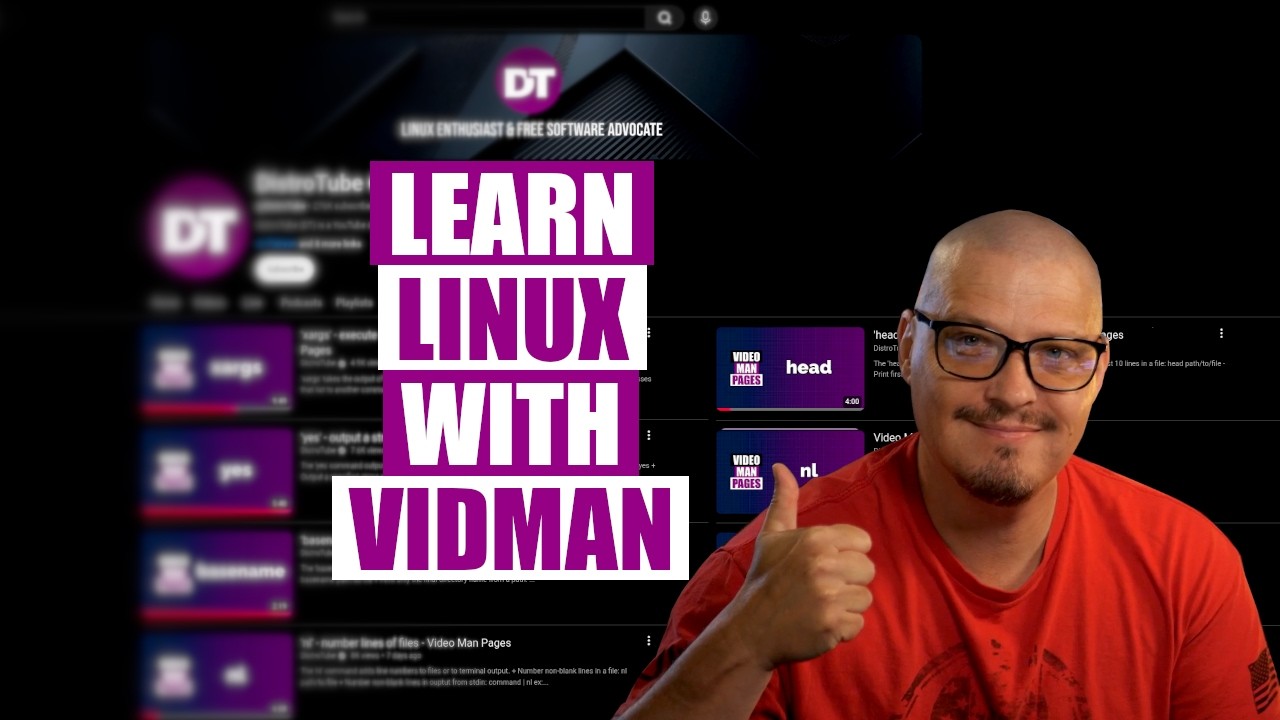
The speaker introduces "Vidman," a project designed to provide quick access to short educational videos explaining standard Linux utilities and their common flags. These video man pages are typically five to ten minutes long and cover essential GNU coreutils like `ls`, `cat`, and `yes`. Currently, the collection consists of 36 videos, with an ambition to reach 100 in the future. To make this growing database more accessible, the creator developed a command-line tool that allows users to instantly retrieve either the video or accompanying documentation for any covered command directly from their terminal.
The development process highlighted the speaker's preference for using large language models like Claude to automate tedious scripting tasks rather than spending hours writing code manually. By providing a brief prompt, the AI generated a complete Bash script, a Makefile for general Linux distributions, and an Arch Linux package build within minutes. The tool intelligently handles various user preferences, such as choosing between opening videos in a media player like MPV or a web browser, and reading documentation using the `less` command. It also includes a configuration file feature that allows users to customize settings like the default video player, which was an unexpected but valuable addition suggested by the AI.
The transcript details the practical testing of the tool, including resolving minor issues such as missing execute permissions on generated scripts and updating checksums for Arch package builds. Once installed via either method, the program functions as a simple utility that displays help information, lists all available commands, or executes specific actions based on flags like `-W` to watch a video or `-D` to read the associated Org document. This approach effectively bridges the gap between static text documentation and dynamic video tutorials, offering users a flexible way to learn about Linux commands by watching demonstrations while having the relevant technical details readily available in their terminal environment.
Read the full video transcript
So, for the last year or so, one of the
projects that I've been slowly working
on is making video man pages. Video man
pages are essentially short videos,
typically 5 minutes, maybe 10 minutes at
most, where I talk about some of the
standard like GNU core utils, uh, you
know, some of your standard shell
utilities that is found on a Linux
machine and I discuss some of the most
common flags and options, the most
common ways to use these particular
utilities. And from the beginning of
this project, one of the things I wanted
to do, I wanted to build up a rather
large database of these videos. Right
now, I've made 36 video man pages. Not
as many as I would like. I'd like to
push that number to 50 soon. I'd like to
eventually push it to 100, but you know,
making videos is a tedious, slow kind of
task. But as this video manage database
grows, I think people need an easier way
to search for these on a Linux system.
So, I wanted to create a program that
you could quickly pull up any of these
video man pages. So, what I did, let me
move over to the desktop here. Actually,
this is um my obviously my YouTube
channel, right? And you can see some of
the video man pages. Recently, I did one
on NL, which is the number lines
program, the yes command, a base name,
you know, but again, I started these
about a year ago, and I've got about 36
of them, I believe. If I go to my
playlist, yeah, video man pages, there's
36 videos there. And if I go to uh my
GitLab, I do have a Vidman repository
here. Let's actually take a look at
this. And when you visit the repo here,
of course, the main page is the
readme.org, org and that is what is
being rendered here which is essentially
a table of all the commands that I've
covered a link to the YouTube video as
well as a link to an org document that
covers the commands that I covered on
video because I have this docs directory
for example and if you wanted to see uh
the commands that I demonstrated on my
alt video go to the al.org org file and
there is essentially the commands that I
demonstrated on that video. Now, since
I've got all of this in a nice neat
GitLab repository, I wanted a program
where the user could go to a terminal
and type goodman cat and get the the
video or the org doc uh from the video
about the cat command. And you know,
this is a very simple thing to do. I
could write a simple bash script, you
know, and and probably spend, you know,
a couple of hours playing around with
some bash and I could get this done.
Then I would need to create a make file
so people could install it. I also
needed to create a package build so
people could install it on Arch Linux
just using the make package command. But
I was like, hey, why do I need to waste
a couple of hours doing this when I
could just ask Claude, right? So last
night, and I know people hate this, DT,
why do you use these large language
models to do the stuff that you could
do? Well, why would I spend a couple of
hours doing something that Claude
literally I I told Claude in one
paragraph exactly what I wanted? Claude
came back and asked me four or five
questions here. I told it, hey, you
know, what programming language do you
want to do this in? And on Linux,
because most Linux machines are going to
have Bash there and Python is also a
pretty good option. and he's like, "Hey,
you want Bash? You want Python or do you
want something else?" I said, "Bash."
And then he asked, "Hey, how should uh
viewing the video work? Should we just
open the link in the browser or would
you rather have the link open in a
standard media player like MPV?" And I
said, "Why not offer both options?" So,
and then he asked, "Okay, reading the
org docs, you know, how are we going to
do that? If you're, you know, doing this
at a terminal or in a TTY, what should
we open these org documents with?" And
we're going to use the less command
because less one of the standard GNU
core utilities. We know it's there. And
then finally, where should the docs/data
live for the installed tool? And I think
what he was asking here is the org docs.
Should we just always pull them down
from the internet from your GitLab or
when we install the Vidman package,
should we just uh download all those org
documents and have them locally
installed on your system? And obviously
that's the better option here. And other
than that, Claude, you know, I gave him
that input. He took about, I don't know,
maybe five minutes, right? And he's
spitting out a lot of uh explanations of
what each of the files he's creating.
Created a a tar file here that contained
all the the scripts. And uh other than
that, I don't think I had anything to
do. Uh once I tested the program, I
tested both install methods, both the
make file and the uh package build for
Arch and there was one minor error
because he assumed that on GitLab my
main branch was still called the master
branch. But remember GitLab u decided to
rename all the branches from master to
main a few years ago because you know a
master branch apparently is is racist.
We've got to rename everything to the
main branch even though it breaks a lot
of things. breaks a lot of
documentation. Even Claude is pretty
smart is still going to the internet and
assuming things are still the master
branch. But, you know, we needed to make
that change, right? So, hey, whatever.
But, you know, this is really cool
because I gave, you know, a very short
paragraph of exactly what I needed. He
asked me four questions. I answered
those four questions and within five
minutes, I have the Vidman script and
then some data here which contains a
commands.ts. TSV file. TSV that's a tab
separated values kind of like CSV of
commaepparated values. If I open this,
this is just a list of the names of the
commands plus the URLs, right? He just
pulled that from the readme.org, right?
The script is just going to pull all
that information from the readme.org
that I already maintain anyway. And then
we've got tools in here. And this is a
gen commands TSV. So this is the script
that act actually actually generates
that TSV file that sorts it by u the
command and the uh URL. So you know
pretty simple stuff and of course here's
the thing I know people complain hey you
don't know what Claude is doing on this
stuff. Well no I I actually do I could
have done this work right? If I really
wanted to spend a few hours and do all
this work myself I absolutely could have
done this myself. But why? What is the
purpose of that? Right? I don't want to
spend that time. This is not enjoyable
to me. I don't like scripting. I don't
like programming. I just want to get
stuff done. So, I let Claude do it in 5
minutes. Now, I can go check Claude if I
want to. I could certainly go and audit
the code here in Claude. Matter of fact,
let me open uh the Vidman script here in
Emacs. I mean, if I wanted to, let me
zoom in. If I wanted to go in here and
actually check it out, I can. A matter
of fact, let's do this.
this essentially the first time I've
really looked at this on camera in
detail. But what is exactly going on
here in this script? Well, if we start
at the top, you have your shebang,
right? User bin bash and then some
comments. Um, it's typically how I start
all of my bash scripts anyway. And
typically I also have this here set- euo
pipe fail. And that's just u a way to
check for some errors. You've got progue
equals vidman. So this is a variable
name. The program name. What's the
program name? Vidman. So when we run the
command later, we're going to use Vidman
as the name of the um the program here.
And you can see we also have help
information also in the comments. So we
know all the flags and options that are
available right up front. Then just you
know checking out the code, making sure
there's nothing that looks crazy or
unsafe here. U the first thing we've got
a function here resolve share directory
and we've got comments here to explain
this. So, even if you didn't really know
what the bash scripting here was, and
we're locating the data directory. I
believe that's the directory that
contains that TSV file, right? We we
need to find that file. And here are
some directories to look into uh to see
if you can find that file. And then
you've got this for loop here where
we're searching this list of directories
and we're looking for commands.tsv.
Pretty standard stuff, right? Uh this is
not very complicated at all. We have
some similar functions here. resolve
docs directory kind of like we were
resolving the data directory right we're
now looking for those org documents for
each of the commands alt.org cat.org or
etc. And we're doing similar functions
for that. So we can go find the
directories that contain those org docs
and then config file. So there is a
doconfig vidman config simple key equals
value lines. That is interesting. I
actually did not know that I could if I
wanted to create a config file for the
vidman command. I don't think it
actually creates one out of the box. But
if I want to I can on this system I
could go create this file which doesn't
exist right now. But if I wanted to, it
tells me exactly what I could do. Key
equals value. For example, config file.
I could go write config file equals and
then give it config file equals the
location to where I want the config
file. If I didn't want this location, I
could also in that config file do
config_player
equals and tell it what I want for the
video player. I believe it defaults to
MPV, but if I wanted to use something
else, I could specify. And again, I
didn't know this was here. This is
pretty interesting and it's obvious what
is going on in this script because again
I know some bash scripting. People will
assume when you use these large language
models, you must not know what the hell
you're doing cuz why would you use it? I
just didn't want to have to write all
this crap out. Plus, Claude is pretty
smart. He's going to come up with things
that originally I would not have asked
for. In fact, when I gave my little
paragraph uh as far as the uh the
prompt, hey, I want you to create this
program, I did not tell him I wanted a
config file. It makes sense to have the
config file there, though. I'm glad he
added it. And again, that's something I
probably wouldn't have added had I done
it myself. And now that he has added it,
I think that's a pretty smart idea. Next
up, we've got some helper functions. So,
these are just bash functions. Usage,
he's running a said command here, said
substitution. And it looks like uh we're
getting rid of the commented lines uh in
some of the org documents. And this is
just pulling out u information names of
commands from the readme.org
or printing out some of the uh
command.org files, right? Some of the
stuff that doesn't need to be printed
would be for example commented lines. We
don't need those list commands. This
function here is listing all the
commands in the TSV file, right? So,
we're going to cut out the names of the
commands and then sort them
alphabetically. And when we when we run
the command, you know, it will print all
that out. And I could go through the
rest of this, but you get the idea. I I
know exactly what this uh script is
doing. So, let's actually try the script
out. Let me open a terminal. Let me
clear the screen. Let me zoom in. So, if
I run Vidman with no options here, oh,
it's not installed locally here. So, uh
let's actually install it. So, let me
actually CD into my
NC GitLab repos/vidman
repository here. And you can see I've
got both the make file and the package
build. Which one should I install? Well,
on Arch, you know, typically I would use
the package build, but I can use the
make file. The make file is appropriate
on any DRO. Well, to test things out, I
think I'll install it both ways just to
make sure both actually work. So, let's
start with the make file. sudo make, if
I can type correctly, install. Give it
my super secure password here. And it
says permission denied. Let me up arrow.
Maybe I should have just done a make
install. Nope. Make install is not going
to work either. So, we have run into a
issue. Tools gen command um script. It's
trying to write to data commands.tsv
and it says permission is denied. Let me
make sure that we have um we don't have
any weird permission or owner problems
in some of this. So, let me go in here.
And one of the things I'm going to do, I
opened a uh a file manager and went to
this repo and I noticed that tools gen
commands TSV, which is the script it was
complaining about, it did not have uh
execute permissions. It was uh set to
execute nobody. So, I put that to
execute owner. So now it is executable.
So now if I go back into the terminal
and do a sudo make install that uh
installs just fine. So that was not a
problem with the code or anything. That
was just you know installing it here
locally on my machine. I' you know I've
got to make sure that those scripts have
execute permissions. But you can see it
installed just fine. So now let's test
it out. If I do Vidman with no flags or
options, we get the help information,
right? It just prints out
basically a man page. I didn't create a
proper man page, but the help here is
fine. It's such a small little script
anyway. I didn't want to take the time
to do a a man page. I think just Vidman
with no flags and options giving you the
help information is fine. Of course, I
could have also just typed -H for help
or the same information. You can see
we've got a list of six flags WRB ML or
H. Now, if I want to watch something,
Vidman-W,
let's watch the video on the ls command.
Just got to pull it down from the
internet. And then it opens it by
default with MPV.
>> Commonly used shield command.
>> All right, let's close that. So, that's
a - W for watch. And by default, that's
going to open in MPV. You could specify
a different video player, though. But if
I up arrow and do -B for browser ls,
that's going to that actually didn't do
anything. It it gives me a a menu system
here. Let me queue out of that. Let me
actually read the help information. -B
must be used with - W. So, let me up
arrow. Dash W for watch. DashB for watch
in the browser. ls. And that just opened
the video in my browser. Of course, you
guys wouldn't see it because the video
was offcreen, but it did open that
correctly. If I type did man and then
some command cat uh without any flags or
options then it doesn't know what I want
to do. Do I want to watch the video in
MPV? Watch the video in the browser or
read the org docs that also got
downloaded. Maybe I want to read the org
doc. Let me type three and it's going to
open the org doc using the less command.
The standard less gnu core util here
where I could read a little bit about
the the cat command. Those are the same
CAT commands that I actually used in the
CAT video, which is really neat. You can
watch the video. You can also read the
document as you're watching the the
video to see the commands I use. So,
there you have it. A little bit of the
Vidman uh command right in action. But
let me actually test the package build
install. Uh to test the package build
install, I probably should uninstall uh
via the make file. So, let's sudo make
uninstall to see if the uninstall works.
It looks like it did. And now let me
actually make pkg-
si. So you need to do this inside a
directory that contains an arch package
build. There is an arch package build.
And if I run this uh error, one or more
files did not pass validity check. So uh
vidman-.0.0.tz
failed. Let me ls. So, and it pulled
that down, but I guess it didn't like
possibly a validity check. Is that going
to be the um the hash on that? If I vim
the package build here, uh we've got
source and then package name. Then we've
got the SHA 256 sums here. I wonder if I
need to update that. So, to update that,
I think update package sums would be the
command.
Or maybe I didn't do that right. up.
Um, or maybe that command is not here.
That may be part of u some of the
Pac-Man um extras package. So, let's
sudo Pac-Man- capital S for install. Uh,
this will be part of Pac-Man- contrib.
So that's uh the pacman-contrib is some
extra scripts that are useful especially
if you build arch packages and you know
do interesting things like I'm doing you
know creating these package builds right
so now let me do the update package sums
that's not quite right was it upd what
is the name of the command I'm pretty
sure this okay there it is up p upd pkg
sums okay
remember the command was something
similar to that. There we go. And now
let me up arrow and I'm going to once
again make package.si and see if this
installs correctly now that yeah that
was it. We just needed to update the
I think I yeah mistyped the password
there.
All right. Now let's see if Vidman
works. Vid man. Yeah. Cat. There we go.
And two. Watch it in the browser. It
opens off screen in the browser. There
you go. So the installation with the
package build on Arch works. Um the make
file installation also worked as well.
So there you have it, a little bit of an
update with the Vidman project there. So
now it's an installable package uh on
Orange. You can use the package build on
every Linux distribution. You can use
the make file to install that thing and
then type Vidman name of program. Uh, by
the way, if you don't know which of the
programs I've done on video, there was a
list flag vidman-l
to get a list of all of the commands
that I've already covered on camera.
Peace, guys.