Video summary
Transkribus is introduced as a powerful platform designed for transcribing historical handwritten and printed documents using artificial intelligence across more than 50 languages. The webinar outlines three primary workflows to assist users: quick text recognition through drag-and-drop functionality, guided processes utilizing public models, and the option to train custom models for specific needs. Participants learn how to upload documents into collections, manage individual pages, and initiate automatic transcription using pre-trained public models available in free plans or super-models intended for mixed scripts and languages under the Scholar Plan+. The editing interface allows users to view images and text side-by-side for easy correction of errors, adjust layouts by adding text regions or baselines, tag entities such as names and dates, and apply structural tags. Once processed, results become searchable within Transkribus Sites and can be exported in various formats including images, PDFs, or XML files.
Achieving high accuracy involves an iterative process where users significantly lower the Character Error Rate by training new models using corrected pages added to the dataset as ground truth data. While printed text generally requires fewer words than handwritten material, model performance depends heavily on document quality and complexity; if public models underperform despite filtering and setting adjustments, users can test multiple versions via history or refine advanced parameters before deciding to train a custom model. Custom training allows for configurable base models, cycles, and stopping criteria, with ideal accuracy targets set around 90% CER below 10%, though lower error rates indicate superior performance. Training graphs visually demonstrate improvement over multiple cycles as the system learns from corrected data until high precision is reached.
Beyond standard transcription tasks, Transkribus supports layout recognition for unique document formats and field-specific extraction including tables, with recognized content publishable to dedicated sites. The platform itself was developed by Readcorp, a European cooperative founded in 2019 with over 250 members operating under the principle of "purpose before profit," maintaining headquarters and data centers within Austria and the EU. With approximately 25 team members, Readcorp encourages users to explore new features through their help center or upcoming webinars focused on datasets and projects. Future engagement includes an annual user conference at the University of Passau centered on AI equality, alongside active community interaction via social media channels like LinkedIn, Instagram, Facebook, and BlueSky.
Read the full video transcript
Good evening.
Welcome to our beginners webinar today,
Wednesday afternoon. Happy you all are
here and are joining us in
today's session. We will record the
webinar, so you can also rewatch it if
you like.
We will also provide the slides as PDF,
so you can also take a look at them
later, and feel free to drop questions
in the chat. We try to answer them
in the chat or here live
during the webinar or also at the end.
There will also be
a little bit of time to address
your questions.
So, I will just start with showing you a
bit what you can expect today.
So, we have prepared a little agenda for
this webinar.
We will, after a brief introduction,
jump right into
the platform and introducing Transkribus
and the workflows in Transkribus.
Um first, we will take a look at how to
upload documents. Then, we will uh look
into the text recognition itself, how
you can edit and export your results,
and um then we will also have a little
outlook and a little Q&A session at the
end.
Just so that you know who is here uh
with with you today and with me as well.
So, um
Sonja is here, one of our customer
success managers. She will later tell
you more about uh
how to train models, how to work in
Transkribus. Then, we have Helene, our
marketing and comms lead.
She will start the Transkribus session
in a moment.
And um my name is Michaela. I'm part of
the board of directors of the Readcorp,
the
yeah, the corporation behind
Transkribus, and I am responsible for
our go-to-market area.
So, everything that uh
has to do and uh work together with
customers and our users.
Um we will take you through the session
a session today, and I will start with a
little
introduction about uh Transkribus really
general
overview um into what Transkribus can
do.
Um we designed Transkribus as a platform
to um make it possible to work on
historical documents um as simply and uh
easily as possible.
So, you all know that uh working with
historical documents, especially trying
to read them, can be really
time-consuming and uh yeah, also
um a work that uh
can take a lot of time.
And uh we want to provide the best tools
and platform for these kind of tasks.
Um Transkribus comes from uh
the typical text recognition or is uh
special especially known for text
recognition and transcription.
So, really focusing on documents,
handwritten and printed printed
documents, and with the help of AI
I'm being able to read these texts uh in
a matter of seconds. So, uh per page, we
can cover over
um 50 languages by now with different
fonts and also yeah, spanning a wide
range uh
through the centuries
um with when we look into the material
that we can
uh transcribe
with our models.
Then, as a second layer, we also have
the layout of possibilities to recognize
layout in in Transkribus, so
automatically detect the different
structures a document can have like
columns, tables,
um
>> [clears throat]
>> as you can see here also in the
examples.
Um but all kind of of structures that um
you can think of when it comes to um
historical documents.
Another um layer is also the tagging and
extraction
of entities. So, you are able to um
yeah, as I said, tag entities, also
extract metadata.
You can flag, for example, cities,
places, um dates, if you like to and
with this create your structured data
set.
And this can be done directly from your
transcribed data.
Another um
yeah, useful advantage advantage is also
being able to search and if you like
publish your um results,
so you can um
do a full-text search across documents
and collections.
You can search um yeah, names and places
or other words if you and and yeah,
depending on what you
wish to find and um
we also have a possibility to um publish
these
um results and um
data via our product called Transkribus
Sites, so really
um nice feature where you have a where
you can create a website on your own to
display your documents together with the
uh with the transcription.
Then, we will yeah, what Transkribus
also provide is uh a nice editor where
you can work on your documents side by
side, so image and transcription side by
side. We will look into this in a
moment. There you can do, um, all sorts
of things like editing the text,
correcting text, and also layout, mark,
uh, the entities you would like to have.
And, um,
yeah, use this interface, um, uh, yeah,
for your needs. And, um,
the heart of a one one of the heart in
Transkribus is, of course, being able to
train your own AI models. So, really on
your own data, for your specific use
case or documents,
um, you can train your own models. And
we have, at the moment, over
300 community models based on millions
of pages that were already Yeah,
we're already trained and are public
also to use.
Our goal, um, today is, with this
webinar, that you will be able, um, to
upload and transcribe documents
successfully after this session, that
you also know how to pick the right
model for your material, for your
specific documents, and, um, maybe also
languages
that you work with, and to understand
how you can manually edit, um, results,
and also
when it is maybe necessary to train your
own model, and how you can do this.
And
with this, I will give you the floor,
Hélène, to
make a quick first introduction into the
platform.
>> Thank you so much. Uh, I'm just
sharing my screen now, and yes, so we'll
get into how we can make your work with
historical documents a breeze, and how
everything that Michaela so kindly
explained actually looks like in
practice.
Um to do that, to make it work for us,
we have three flexible workflows in
Transkribus. We have level one, which is
the quick one, the quick text
recognition, which is a workflow where
you can basically drag and drop your
pages into our quick text recognition
tool. Then we have the level two. This
is for a larger data sets or a larger
corpus, where you can use our public and
pre-trained models. And then, like Ms.
Michaela said, we have the third uh
where you can train the custom models uh
with Transkribus.
So, the quick one is really
uh the quickest result. It kind of
similarly works to translation tools,
where you just drag and drop your page
uh into the quick text recognition tool,
and then you already see the result
right next to it. Um but what we're
focused on today are level two and
three, the guided one.
Um it's a bit more elaborate, uh but the
information and bit more um helpful for
larger amounts of text, if you have it,
and you can really uh adjust it to the
documents that you're working with
better. And then, of course, we have the
custom workflow with the training that
uh Sonya will have a look at later. So,
Transkribus is really designed uh to
work with different amounts of of
documents, if you have just one page or
a larger amount of documents, so it
works for corpus of any size, large uh
small and large ones.
All right. Now that we have seen what
Transkribus can do, we will start with
the guided workflow.
And we'll start right at the beginning
with the upload uh uploading and
managing your documents.
Before uh we look at how you can upload
your files, uh we want to explain how
the documents are managed and kind of
explain the document structure first, so
you know exactly where your documents
and pages live within the platform, and
you can easily find them later. So, in
Transkribus, everything lives inside of
a collection, and you can think of a
collection kind of as a digital folder,
and within the folder, you have your
documents. You can have multiple
documents in every folder in every
collection, and within the documents,
there are the pages. So, you can have
multiple pages in a document, but of
course, that depends on what kind of
material you're working with. If you
work with letters, maybe your document
is one letter, and that one has just one
page, or a document is a book, and then
it has hundreds of pages.
So, it really depends on what documents
you upload.
And now, I think we can already jump
into the platform,
and we'll have a look at where you will
be doing the uploading of the documents
in the web app. And this is, let me go
full screen, what you see once you
um log into Transkribus. Uh we have seen
that many of you already have an
account. Uh maybe you haven't uh logged
into Transkribus in a while, so this is
what it looks like right now.
Um and here you can see an overview.
This is the landing page with your
favorite collections, recent documents
that you were working on, and here we
have the quick text recognition that I
mentioned previously. On the left side,
you have a menu,
and here you can see the main menu
options, which is home, of course, uh
then projects, AI jobs, and search. And
then you have your assets, which is
collections, models, sites, and
datasets. So, something that is new is
projects and datasets. Uh we will host a
separate webinar next week, more about
that later, to explain projects and uh
datasets, but we'll briefly explain them
today, just so you have that so that you
know um
what these new uh assets uh are. So, the
one thing that you need to know and the
only thing that you need to know about
projects right now is that the projects
bring together your collections in AI
models or datasets together under one
roof. So, what you can think or how you
can think of a project is basically a
digital binder for your work. So,
instead of everything being scattered
around the platform, you can really
bring it all together into one organized
space.
So, before I mentioned the structure of
collections and documents and pages, so
you can have multiple collections, for
example, in a project and even uh,
custom models that you trained also
assigned to a specific project. So, it's
a single dashboard where you and your
team can collaborate, track progress,
and manage everything um, and that's
everything you need to know for now.
Today, the main assets that we are going
to use is collections and models, and
then everything else for everything else
we also have separate webinars, but not
to overwhelm you right now. So, now that
we know the doc how the documents are
structured and kind of what we are
looking at here once we log in, let's
see how easy it is to actually upload
your material into Transkribus. And the
easiest way to do that is to click on
new.
And then you can see already that you
have the option to upload documents.
Now, if you've already uh, worked in
Transkribus and you already have a
collection that you created, you can
upload it to existing collections, but
of course, if you're just starting out,
we recommend creating a new collection.
And then you can give your collection a
name. We will call this beginner webinar
July
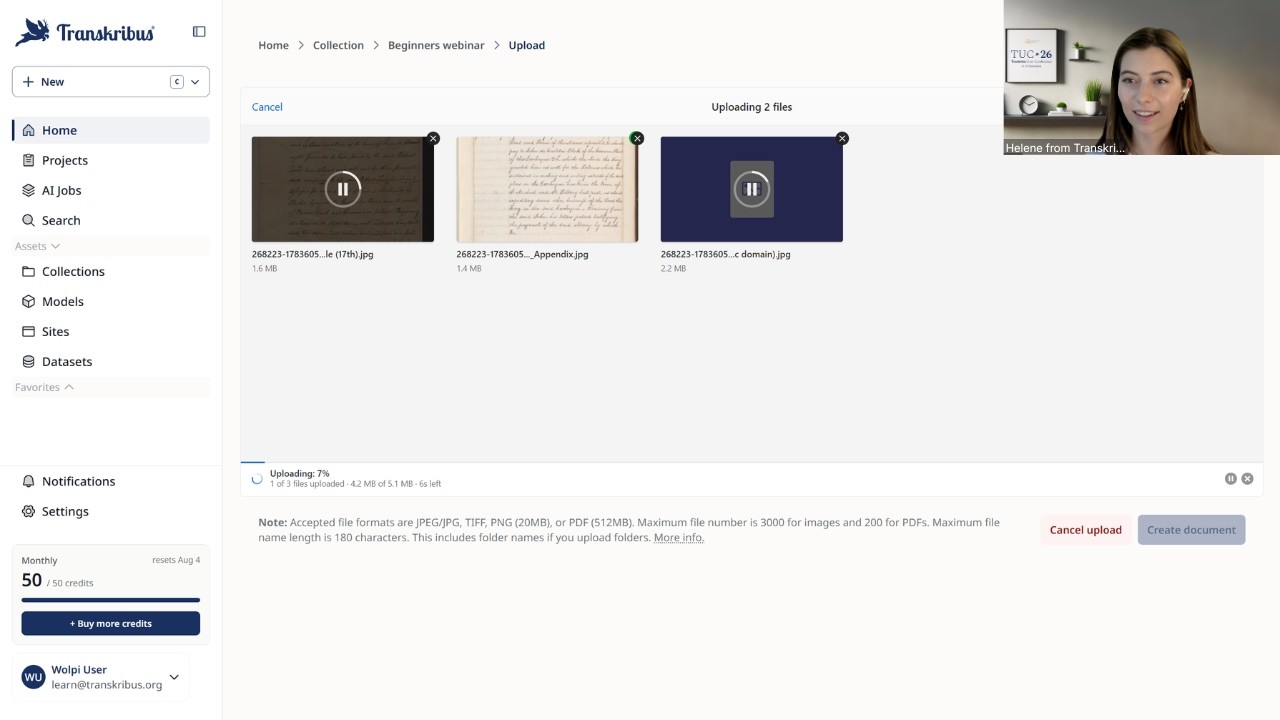
and click on create a collection.
Immediately immediately you will see the
upload area and you can click on upload
to add your first document. You can
either just drag and drop your files
here or browse for them. Just going to
drag three pages over here and you can
see upload is complete.
We see the pop-up here, sort files.
They're not in alphabetical order. Do I
want to sort them?
It's three pages. I don't need to sort
them right now, but just so you know,
you do have the option to sort your
pages in order.
And then I will give my document a
title. So, before we gave a name to the
collection, but now we're uploading the
pages and it will automatically create a
document and we will call this English
handwriting.
Click submit.
And the document creation has started.
You can see here, uh we are in the
collections overview. We're in the
collection called beginner webinar July
and here is the document that will be
uploaded. We can see the progress bar
right here as well.
And we can even see here a preview of
the amount of pages that is in my
document, which is three pages. So, once
you've uploaded your document, it's
ready for processing. Um what you can
also do here is manage your document.
So, for example, you can
uh share it, move it, copy it. You can
also manage labels or add labels. This
helps you for example with the work that
you're doing to immediately see what
kind of for example, material material
you have at what point in the uh
transcription progress you are um stuff
like that.
And if you open your document, there you
can see the pages that you just uploaded
and you can of course also manage the
pages here um on page level. So, in just
a few seconds you have uploaded your
documents to Transkribus and it's ready
for text recognition. So, the next step
is to start the automatic text
recognition. And before we do that,
we'll just jump back into
our presentation
for a bit more information.
All right. So, we have successfully
uploaded our documents. Next step is
using the public models.
So, how do we start the automatic text
recognition?
When we start the automatic text
recognition with public models, the text
recognition converts printed or
handwritten text into digital text using
our public or custom AI models. In this
case, in this step, we're using public
models.
Um so, just a quick recap. We already I
think had a previous uh a brief
explanation before, but public models
are pre-trained AI models that are
available to everyone in Transkribus.
They've been trained on hundreds or even
thousands of pages and can be trained
for print as well as handwritten uh text
in different languages and scripts.
We already have over 400 public models
available for different scripts and
languages. We have a short preview here
on the side
um and also in over 50 languages and
scripts.
Now, one question that um new users,
especially, often have, and it's a very
legitimate question, very valid
question, is how do I find the right
model? So, I've just mentioned that we
have over 400 public models available,
which sounds like a lot, and it is a lot
of models. Um but, how do you find now a
model out of those 400 that actually
works for your material?
So, what you can do is here you can see
a preview of uh the model space, uh the
model asset space that I previously
mentioned. And what you can do here is
filter. So, we always recommend to use
the filter option to really um reduce
the amount of models or to really filter
down the models that you can actually
use for your material. So, when I talk
about filtering, it really depends on
what kind of material you have. For
example, now we have um English
handwriting, meaning I can sort
uh filter for English language. I can
also filter for handwritten, and I can
even uh filter for the specific time
period that my documents were written
in. So, that way, once you apply all
those filters, um
the models that will be shown really
reduce to a handful. So, starting from
uh 409 models, if you apply the specific
filters and really look for the type of
material that you have, it will be
reduced to a handful, for example, um 10
or 20, and that's already quite a lot
more manageable than 409. I will show
you how you can filter in a bit later
uh in a bit.
Once you click on the model,
you will also see further information
about it. Um for example, the size of
the training data or the character rate.
And this is again an indication of if
the model might work for the material
that you have or not, um
because the model description not only
shows these kinds of stats, but often
also shows with what material the model
was trained on. So, for example, if it
was trained on government records or on
diary pages, st- um in- additional
information like that, and that can give
you another indication of it how it
might work for your documents or if it
might be useful.
The CER, the character error rate, is
also also an indication of how well the
model might perform on your documents.
This is not a guarantee, but it is an
indicator. So, the CER, the character
error rate, of 4.8 means that during the
training, the model showed an accuracy
of over 95%,
meaning if you apply this model on a
similar uh on similar material,
it will probably also have a good
result. Maybe not exactly 95 uh 95.2
accuracy because the models were trained
on a lot of material. We can see here
38,000 pages.
But it has not seen your specific
material that you're working with.
What we also have are super models.
And they are Oh, I realized that we have
an error here in the heading. The super
models are available from the scholar
plan and up. So the general public
models are available
in the free plan. The super models from
the scholar plan and up. And what is so
super about them and so impressive about
them are that is that they are even
larger than the general public models
and very versatile. So what does this
mean? This means that you can use a
model even for different scripts and
languages and for mixed material. You
can see here that the model was trained
for
six languages or on six languages
meaning it is a model that we generally
recommend for mixed material. Speaking
of the text titan, we now even have a
new text titan, the text titan two.
I think it was published last week that
you can also try for your material and
it provides even better results than the
text titan two.
So once you have found a model that
matches your material whether it's a
public model for a specific script or
one of our super models for mixed or
multilingual text, you can then apply it
to your documents.
And we will jump back into the platform
to do just that.
So
we have uploaded our pages and we want
to start the text recognition. What I am
doing to start the text recognition is
select the pages
that I want to recognize. You can also
select the entire document, but since
we're all at page level, I'm selecting
the pages right here. And then you click
on process with AI.
And then here, we have a model that is
already pre-selected because it's
probably the one that I worked with last
or that we worked with last. But you can
also search for specific models here by
for example typing in English and then
you will see the models recommended that
have English documents in their training
data. Or you can also filter Oh.
Filter here for uh
the type. Again, you can select the
language that was seen in the training
data and filter by century.
Oh.
And can see here. Okay. It shows doesn't
show it here correctly, but we can see
that the filter was applied correctly.
And then here is also a smaller overview
of what the screenshot showed before.
I'm going to select the Text Sichten
right now because it is the one that is
or best out of the box or provides the
best out of the box performance,
generally speaking. And now I can just
simply click on start recognition.
And the recognition is in progress. So,
what's happening right now in the
background is that Transkribus will
basically analyze the layout of the page
to see where there is text on the page
and then convert the handwritten text
into machine-readable form. Now,
processing can take a bit. We can see
here. It's quite busy. We're number 198
in the queue.
But because uh we figured that might be
happening, we have prepared some
documents for you already. Let's go to
our collection overview
and go to our
beginners webinar folder.
Our beginners webinar collection. And
then I'm going to go into my English
records document.
And we have some pages prepared here.
Now, once I open the page, I can see the
side-by-side view
of Let me just close it here. Of the
page that I uploaded. And then here on
the right side, I can see the result of
the automatic transcription.
Reduce the font size maybe a little bit.
Um and what can happen when you use
public models is that there are some
errors and some mistakes. As I mentioned
before, the public models often see a
lot of training data, a lot of
references during the training that they
use to correctly transcribe your
documents. But it can still happen that
there are mistakes because the public
models have been trained on different
material, but not exactly the
handwriting that you're working with.
So, mistakes can happen, but you can
simply correct them in the editor.
So, we've added a few mistakes in here
to show you how to correct them. For
example, if I click here in my text, I
can see that the name is not Richard
Yates, but it is Richard Gates. And I
just use my keyboard to correct the text
here.
We can also see
here
for one
part.
And this way you can correct the
transcription and then save the changes.
This is how you can correct the
transcript. Um what you can also correct
is the layout
uh
um the layout part. So, here on the left
side, we have the layout editor.
Um and we can also do some changes and
edits here. For example, let me maybe
open a different page.
So, this one we have also prepared
with some mistakes, so we can show you
what to do um if the layout, for
example, isn't recognized correctly.
So, here we can see that the marginalia
wasn't recognized, or in this case, I
mean, it's prepared, but yes, let's say
the marginalia wasn't recognized. What
can I do in that case? I still want to
have the text uh uh
fully recognized. What you can do is add
another text region. So, this here, this
yellow box is the text region, and this
encloses all the handwriting. This is
basically um where the Transkribus AI
recognized that there is text on the
page.
Um the purple line underneath the text
are our baselines. These are the
reference points for the AI to know
where there is uh handwritten lines
within the text region.
And you can add both the text region and
the baselines manually in the layout
editor.
You can do so by clicking on add region,
and then click add text region.
Now click once to start drawing the text
region, and click again to stop drawing
the text region.
And we can see now that there has been
another text region that was added.
Um one thing I think I'm going to just
jump the gun a little bit, or maybe show
you something right away that I was
going to show a bit later, but I am
seeing that
the
text region isn't really well um visible
very well, because the page is kind of
orangey, and the text region color is
yellow. So, it's a bit hard to see. Um
if you have um
or in this case, what I can do is go to
settings,
because it does help to have kind of a
better visual uh differentiation between
the colors of the text region and the
page, especially when I'm editing. And
then click on image. And here in the
settings, I have some visibility
settings that I can change. For
examples, I can choose to either show or
hide baselines, and I can do the same
with regions.
Um, I can also change the colors here.
So, because the yellow is a bit hard to
spot on the orangey page, let's maybe go
for go for a green color. And as soon as
I click on it, you can see the region
color change. And I think I'll stick
with that, because you can really see
the difference,
uh, very well,
uh, whether the or you can see very well
if the text region has been selected or
no. So, this, I think, is easier to work
with.
Now, if I want to add a baseline, I
click on add baseline. I click once to
start drawing the baseline, and then
double click to finish drawing the
baseline.
There are, uh, many more other, uh,
things that you can do to edit the
layout, such as, for example, split the
layout or merge the layout.
But, I think we probably should
keep going and move on to another, um,
step. But, what you can do if you're
interested in, uh, working more with the
layout editor, is you can click here on
the three dots, and then go to keyboard
shortcuts, and we have a nice list of
all the keyboard shortcuts that you can
do, um, and what you can do when it
comes to editing the layout.
Now, one more thing that I want to
mention here is that you can add tags to
your layout, as well as to your text.
So, tags basically help, um, add
additional indicators or markers for
your transcription.
The structure tags can help you define
the, um, hierarchy structure of your
document. For example, they can identify
or help you, um, mark if this is, for
example, a paragraph or marginalia.
And it gives you, or it helps provide
more context, uh, and meaning to the
transcription. So, to add text, we
select a region,
uh,
then do a right click with my mouse, and
then I can assign a structure type. In
this case, this is a marginalia.
And we can see that this is reflected
right here as well. Here it is a bit
smaller, but we can just simply go back
to settings,
and then we can increase the label size
a bit,
and we can see
that the label is much better visible
now.
Similarly, you can add uh, textural tags
in your transcript, and they help to
identify and label label specific
textural information, such as names or
locations,
uh,
within your content that you have. To do
that, make sure that the tagging feature
is enabled here.
And then you can just mark
the text that you want to tag. You can
have a person here,
and then, for example,
date here, and we can even
add additional information, for example,
that the th in ninth is superscript, and
that way you can add, um,
labels to your documents.
Then make sure to save your changes.
And this is how you can edit the
transcriptions,
uh, once you've used a public model.
And now that we have reviewed and
corrected our text, let's just say it's
it's accurate, um,
it's also fully searchable. So, the nice
thing is, because it is machine
readable, it is also searchable, and you
can use the, uh, search feature. Let's
go back to
the overview here to look for specific
information. Again, names, places,
or anything else, keywords that you want
to look for within the transcriptions
that you created.
Once you've recognized and corrected and
maybe even searched through all your
transcriptions, the next
step, or well, it's an optional step, is
exporting your transcriptions. So,
exporting can make a lot of sense if you
want to use the text outside of
Transkribus, for example, to include it
in a publication, share it with
colleagues who don't use Transkribus.
And to export it, you can select the
document or single pages, and then click
on the action button right here,
and go to export.
And then here, you can see the different
export options. For example, images,
PDF.
What is also included from the Scholar
Plan and Up is, for example, page XML,
which is especially useful when you work
with more structured documents like
tables. I do think we had a question
about tables.
You can work quite well with tables
within Transkribus.
We will not get into it right today,
unfortunately, but if you're interested
in working with
with table layouts in Transkribus, we do
have a separate webinar recording on our
YouTube channel for that. But yes, so
you can select the export format that
you want, and then click on start
export, and the download link is sent by
email, and you also have an overview of
all your activities
here in the jobs table, for example, of
your upload or your exports.
Now, if you're still working with the
material within Transkribus, it's best
to stay in the platform.
That way, your progress, the layout, the
version history is all preserved, but
this way you can export it
if if you need to. So, exporting is
something that you don't have to do
right away, but we recommend it to only
do it once it's finished, but now you
know how it works.
Um now I will hand over to Sonia in just
a bit, but before we do that, I just
want to show you
one more slide, and
that is about what to do when public
models fall short. So, if you have used
a public model
um
and you filtered it quite well for the
type of material that you have, for the
language, for the script, for the time
period, but the result still wasn't
really that good, there are a few
options what you can do to improve the
result. We on the first hand recommend
to test multiple models, so you can
compare the results from two or more uh
text recognition models by using the
version history within the editor.
This is the small clock icon in the top
right corner. Let me maybe just jump
right back to show you.
Um this is very useful to really compare
the history of um your transcription.
And you can use it here. So, this is the
version history, and you can select a
different version, click on compare with
current version. Here, this there's not
much to compare. Let's maybe see here.
And there we can see a lot of
differences. So, this is one way how you
can compare the results of two different
models.
What you can do as well is use a layout
model first.
So, for example, a baseline model like
this one, like the Universal Lines
model, to first recognize the structure,
and then in the second step apply the
text recognition model.
Uh what you can also try is adjust the
settings, so fine-tune the advanced
settings. We have more information about
what settings um there are and how you
can adjust them in our help center as
well. And if it still doesn't give you
the result that you need, you've tried
multiple models, you compared them, you
experimented with the baseline models,
and you use the advanced settings, in
that case we recommend to train a custom
model specifically for the documents
that you're working with. And this is
where I can hand over to my colleague
Sonja.
>> Thank you, Helena.
Let me just share my screen.
So, as Helena just said, um
if
everything else falls short, that if the
uh
public models just fall short for your
material, or if you have like a lot of
material,
or also maybe if you have very specific
um
handwriting or very specific vocabulary,
for example, as Helena showed us, if you
want to tag places or names and they're
very specific places of a specific
region, for example, then um sometimes a
public models might not recognize those
words correctly because
as I said, they are so specific, and
then it might make sense to just maybe
train your own model. Same goes, for
example, if you have a lot of um
material and it's very homogeneous
material, or it's also yeah, just
material that's um
not very common in
um maybe the region or language or
something like that,
then also um it might make sense, as
well as there are, of course, areas,
languages, countries, a lot of things
where our public models maybe still you
can't find the quite the right one, for
example, and then also it might make
sense to train your own model on your
material.
And um this also makes sense to then, of
course, customize
your model to your material, as said,
for example, with text, and get the best
results or the results you need, for
example, in that case here.
So, yeah, it really depends on your
material. It really depends on your
needs, on what you uh need the
transcriptions for, for example, or what
data you need from the transcriptions.
Um
and yeah, it can just make sense to
train your own custom model, sometimes
even maybe make it faster than using um
public public model that isn't really um
working out for your material.
And so, custom AI models, as said, they
use specific examples to help the AI um
accurately recognize and understand the
writing in your training data. So, the
important thing is that your um
the AI learns from what you
train it on. So, on your material that
you
um
trained. And how are you doing it? So,
we're adding the step into the workflow
that I didn't explain before, the
training,
before the recognition, the editing, and
exporting of our material.
And for this, it's
easiest or it's really fast um if you
already find a public model that is
maybe semi good on your materials. So,
if if you say, "No, okay, I still have
like a 70
um
percent accuracy and a 30% of errors in
my material, um
I need a better model because I have
hundreds of pages um then you can
correct that text. You can recognize uh
use the public model already recognize
your material once and then correct that
text. That's faster than doing
everything manually. So, you alrea-
already will have some words in there
that are correct. You already will have
the fields and the baselines drawn
hopefully correctly. Else, you can also
pre um recognize only the fields and
only your baselines and using a baseline
model to only recognize the layout um
first and then type in all your text in
the editor.
Um whatever of course works best for
your material where you're fastest, but
it will of course take
away some time from correcting if you
use um
pre-trained models.
And after having corrected the text, um
you save it as ground truth.
And
ground truth is a um term that's used in
um machine learning. It's training data
that is accurately transcribed text
paired with its image. So, the very
important thing here is that
for example, as you saw in the editor
just before, the text correlates with
the
lines recognized on the image.
And that every word of course correlates
with this. So, if I
want to have a word for example, um
the word mug correct um read as mug,
then I have to type in those words of
course in that place, else it will not
learn it correctly.
Once you have created that ground truth,
you have saved it,
um you can create a data set. As said,
data set is um one of the um
newer assets in the um Transkribus
interface and it's a curated um version
selection of the pages that you can
import from more than one collection
to use as a training data that you can
afterwards also have a look at it again
and see okay what did I even use as
training data for the model.
Um as I said it's a
bit bigger than that of a topic and we
will have a uh
special webinar again.
More information on that later, but
datasets in general are curated sets of
pages that um can be used to train,
validate, and test custom AI models.
And um they are designed to um get you
uh best overview of your ground truth
data that can be imported from more than
one collection, so you can have
different collections, maybe you had
different um upload steps and everything
and you can put all your ground truth
data, everything that was corrected,
into one dataset and you have it in one
place, which is way easier than it was
before because before you only had
everything in the collections and you
you needed to somehow um fit everything
together and sort your data for your
ground truth data. And so this just
makes it easier to have everything for
your custom model in one place.
And um yeah, this is how it's going to
look then and you once you have the
ground truth and you have set it into a
dataset
you can start with training a model.
And dataset here
will then freeze that
ground truth pages and versions of your
model. And if you see, which is a very
common thing to do, oh my first model
wasn't good enough and you then want to
add more pages or you afterwards um for
some reason process more pages and say,
"Yeah, now I can um, add to my model
because I have another hand that I want
to add or anything like that." Then I
can add those ground truth pages again
to the data set. The older version will
remain
with all the pages. So, if I need to
have a look at the older version, I can
see, "Oh, I used those and those pages."
And
adding um, to a new version of the data
set will mean all the old ground truth
will also be in the new version and you
will add new um,
pages. And so, you don't have to again
go searching in every one of your
collections, in every one of your
documents for all those pages. It will
just make it easier. And afterwards also
shareable if you want and have the
permission to share it um, with other
users once you maybe publish your custom
model, which you um, can also do.
So, how does training work in general?
Once you have set all your ground truth
in your data set, you then go to train
your custom model.
You choose your version and then you
select your
uh, data between the pages that the
model is really trained on. And then the
validation set, which are pages that are
set aside during the training that are
then used to assess the model's
accuracy. So, generally it's around um,
it's set automatically to around 10%.
So, if I have
I don't know, 100 pages, then 10 pages
will be validation set and the model
runs those pages against um, the trained
data to see how well it performed. And
that's where the CER comes out, what um,
Helene already showed us before in the
public models as well. So, how good the
model actually is on your
trained data.
Afterwards we get to model setup. There
you add the model description, the model
metadata and then you add the training
parameters. Here you can also add
advanced parameters like a base model,
the training cycles, or early stopping.
Um
base models can be helpful sometimes.
There you could add um essentially one
of your own older models or a public
model as a base model so that data is
trained with your model.
Um if you don't have
a lot of material, it generally doesn't
make sense to use a base model,
especially considering data sets where
you also can use your old ground truth.
It's make make makes more sense to build
on your old ground truth than um use a
base model except if you have a large
amount of data or very specific data
that is correlate in correlation with
another public model or things like
that.
Um yeah, and then you can start your
training.
And now let's have a look into this
because of course this is a bit
um
tech- technical without any further
information.
So, currently I am in the um
this is the collection overview and I'm
in I'm going to use one of the documents
and in one of the document
overviews and as you can see um
with the green bar
I have already set the
all the pages to ground truth so they
are corrected. They have tags,
everything I want them to have,
everything I want them to train on.
Uh
or be trained on.
And so I say, "Okay, I have the whole
collection for me now is ground truth.
There's there isn't anything that I want
won't like to use as training."
So, I select all of them in this case.
Maybe I don't want to use this one
because there's no text here, but all
the others. And then we just click on
train model
and select a text recognition model. You
could also train um field, table, or
baseline models. Those are of course if
you have very specific material if it
for example table material, you could
first train that your layout as Helena
said before. If the public models don't
work out for your material, there is um
adjustments you can make for example
with table, field, and baseline models.
But for now we're just training a text
recognition model because we already
have the ground truth, the layout, and
everything.
Now it automatically selected all pages
and from this collection I could also
have selected it from a dataset, but
we're using collection. I want to have
the latest transcriptions.
Um yeah, if I don't select pages
manually, it will automatically just
select all of them. So I'm going to use
the next step. Now it needs a higher
collection so a collection where your
we're using the beginner this collection
when we're in where your validation set
is later is then saved and also
um where your model is connected to.
And then let's do just a test training.
And description
should of course be
longer especially if you want to um
publish your models. It makes sense to
have a more detailed description. But
for now, this is the answer.
We have English as the language.
And I think 19th century.
Um
these are also important features then
for if I said you want to make your
model public later on so that other
users might be able to use it as well
and uh for them also to find it of
course. We don't have any image here, or
else this is of course
uh is also just a visual thing.
So, the next step.
Now, we have the training parameters. As
said,
base models we're not going to use base
model because we don't have that many
pages, so and we will leave everything
else as is.
This also makes sense if you see with
the first model training, um it didn't
work and you already had a lot of pages
and are quite sure that your ground
truth should be okay, you can try around
a bit with the training parameters.
Basically, you can try to let it run on
more cycles, so it will go more often um
through the entire training set, but you
know, I just
Yeah,
um but for now, we will leave it as is.
It always makes sense to first try it
with the automatic settings, and if it
doesn't work, we will try different
settings. So, to the next step.
Lastly, you will get an overview of
uh the model you're training.
We are getting our pages,
our language, our century, then the
validation split, that's
as I said, automatic, it's 10% in this
case, so I have
146 pages of training and 16 pages
pages where it will
um the model will see how well it
perform.
Then, the image preservation, we didn't
do anything to the training parameters,
so that's all as is.
Same with the training loops, and the
model overview will also tell you what
in this case would be the outcome, which
is a specialized AI model for English
documents.
So, we can start training.
Now, it's started, we will get to
re-work that here to the AI jobs, and we
can see it's created.
Training can take um a bit longer than
recognition, so depending also on the
e-pack box that it is running on, so how
often it is
um
training on the material. If we have
100, if we have two, 300 um then it
might take longer even.
Yeah, but after we have after it's
finished
it will show up. You will get a
notification and it will show up in your
own models. So, here for example, and
here's also one model already trained.
This is um
on the same material basically
with a CR in this case of 50% which is
quite high.
So, now let's jump into the
So, the CR in this case was 50%. Here
you also have an example of a CR of 38%.
Sorry. Uh
this means that the accuracy of the
training was
in the other case it showed 50%, in this
case 61%.
So, uh the accuracy of the training is
quite high while the error rate
is also quite high in this case. 48%
means there's still quite some errors in
there. Generally, as a thumb rule, we're
thinking of about
90% of accuracy, which means about 10%
of CR. So, if you're looking at your own
custom model or any other trained
models, it always makes sense to have a
CR that's lower than 10%
in your model.
And
uh the lower you get the better, but you
won't will never get to zero. So, around
4 to 3% is really, really good already.
So, this means your model will not have
a lot of errors when recognizing your
own specific material.
And
in this case, the important thing is
that um simply correcting the
transcription, so if you already if you
have a really high CER and you want to
lower it, so we want to go from this 38%
to um 10%, it doesn't uh do you any any
good to just correct the transcriptions
in the editor in Transkribus. You have
to train a new model. And that's where,
for example, you have to correct more
pages, then put them into the data set,
and then train a new version of your
model, and then the model will probably
improve.
Or, as I said, you can play around with
the parameters, maybe change something
there, then also the model will improve,
but you always have to do this by
training a new model, basically.
So, once you have a model you're um
satisfied with, or even if you say,
"Okay, my model has a 15% CER, but I
want to try it, I want to see how it
really performs on my documents."
Try out your model,
recognize some of the pages that aren't
ground truth pages with your new model.
Don't recognize all of them at once,
first try it out, that's always better.
Then
um
if you say, "Oh, I want to lower the
CER, I want to have a better model."
Then you can correct the text that you
recognized with your first model, again
save them as ground truth pages, and
create a new version in the data set,
and start a new training.
So, you
uh do this over and over again, and
at the end, maybe you get to around
6% of the CER, so you have a very high
accuracy during training, then the
training graph will look something like
this in the picture here. And this is
where you want to be for a really good
or accurate model. And then again, you
can train it try it out and recognize
your material.
And if you used, I don't know, maybe
200 pages and you have still have 1,000
pages, it will save you a lot of work
and a lot of time to train that model
even if you had to train that three
times maybe.
And yeah, as a general estimate, for
printed text, you don't need that many
pages, that many words. That's a bit
easier, of course. But it really really
depends on your material, on the quality
of your material, on very
on different aspects of your material.
And of course, the more hands, the more
difficult it is for us humans to read
the material, the more difficult it will
be for the AI to learn the material. So,
you might need more
words, more pages of ground truth to
tell you train your material.
So, as I said, this is a very normal
part. You probably will have to do it
more than once if you start training
your own models.
So, now you should know about how to
upload and transcribe your documents
successfully and easily, how to manually
edit, how to pick the right model for
your material, and if that fails, how to
train and improve a custom model.
What else can you do in Transkribus and
with Transkribus?
As said, as Selena said, you can also
recognize layout, the baseline models if
you have very peculiar layout, for
example, maybe with very small
lines or anything like that.
There is very
everything is possible
basically.
And then you can also recognize just the
fields as you saw in the editor before
with Elena um
if you want to have specific just
specific fields, you can mark and
recognize those. Or if you have table
material, you can train your own field
and table models and can then also
recognize um table material with
structure. Maybe you need that for
export the metadata to do or anything
like it.
And lastly, um as uh Michaela already
said, if you don't want to export it,
you can also publish your recognized and
edited material on Transkribus sites.
And you can have a look at an example
sites for example in the links down
below.
And now I think I will give
uh
back to Michaela.
>> Yes, thank you
for this overview and I will
just quickly wrap up our today's webinar
um to give you also a little
inside here. So now it's working.
Um yeah, what what you saw um especially
um focusing on texts uh models and using
text public text models and also how you
can train your own text model. We
believe or what we are working for with
Transkribus is to um build the best
tools, the best platform for making your
historical documents accessible, to also
make it easy
to um
work with these documents, especially to
being able to um
faster transcription, um less manual
work, so that you can later focus on the
real content behind this, also the
different use cases everyone has
while working with these documents.
Um
Who is behind uh Transkribus? Um I
mentioned it briefly at the beginning
that um Readcorp is the European
cooperative behind Transkribus. We were
founded in in um 2019. Um first
Transkribus was part of a research
project and uh the coop was then founded
um six uh yeah, seven years ago already.
And um we are co-owned, so we have uh
multiple members, over um 250 public
institutions, private institutions, as
well as private individuals who are
owning uh shares uh at yeah, in the
coop. And um
we or the idea behind this is to really
being able to
push operation and further development
um of the platform together. So, um our
mission and our our vision is also
purpose before profit, so we really um
reinvest everything into development of
the platform.
And uh together with the community,
we um also building the road road map um
to where Transkribus should go or being
developed. Um we our our headquarter is
in Austria and Innsbruck.
There also um is our data center. So, um
we have all the data so the
the servers are in the E-EU.
>> [gasps and sighs]
>> Um this is also quite nice to have
there. Um and to give you a little um
idea of also the people behind, the team
size is um at 25 team members
at the moment working on developing the
platform.
And also working together with users and
customers.
Um yeah, just just a little overview of
the different members we have. We
integrated a few logos here, so you can
take a look at
um
I hope you uh
got inspired during our webinar. We
encourage you to test it, try it out.
And if you need help, you can also visit
our help center. The team is really busy
also working on constantly updating the
help center so that you can find your
right support and help resources there
as well.
Um we mentioned it before, so all um
in the first place all our webinars we
had uh
in the past you can find on our YouTube
channel, but we will also have some new
webinars in the coming weeks and months.
And the next one is next week on
Wednesday where we will look into the
new features, projects, and data sets
and how to use and to work with them. So
if you're interested in this, we are
also happy if you would join next week.
And um yeah, another big uh
conference is coming up. We have our big
Transkribus user conference every 2
years.
And uh this year it will be uh at the
University of Passau in September.
And the topic is not all AI is created
equal. We have a nice program
and uh
also really cool speakers and uh yeah, a
great community or yeah, opportunity for
community exchange there.
So if you like, you can also check out
our TUC website. You can um
of course participate on site in Passau
where we would be really happy to see
lots of uh faces there from the
community, but you can also, if you want
to attend online and listen to some of
the
um sessions.
Yeah, a little shout-out to our socials.
So, if you want to join the
conversation, we are on LinkedIn,
Instagram, Facebook, and BlueSky.
So, you can also find us there.
And um with this, we are slightly over
time with 4 minutes, but I think it's
fine.
Thanks for for listening. Are there any
questions you have?
It was a lot, and we will, of course,
share the the recording afterwards.
So, you can also rewatch and
>> [snorts]
>> test
your work in Transkribus.
So, I don't see
any questions, so I would say
we can wrap this up.
Thanks for listening. Have a nice
Wednesday evening,
the rest of the week, and hopefully we
will see you next time.