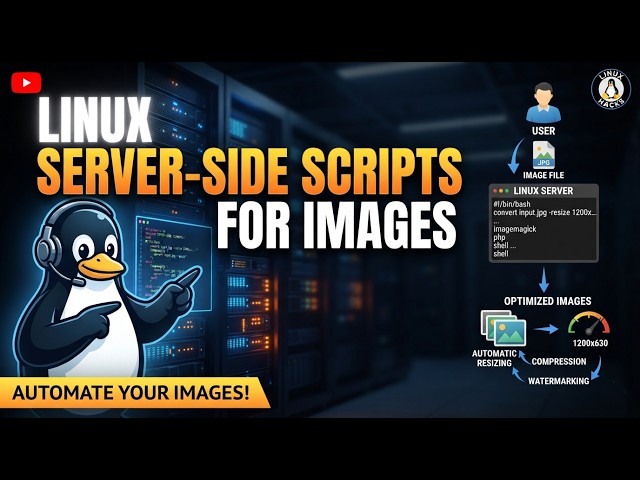
Video summary
The video introduces a practical method for performing real-time image manipulation directly on a web server using shell scripts within the BusyBox environment. The presenter begins by starting the built-in HTTPD web server with specific flags to run it in the foreground and verbose mode, allowing for easier troubleshooting. Initially, the server is configured to serve files from the current directory, but the core focus shifts to creating executable scripts inside a `cgi-bin` folder. These scripts act as CGI programs that can generate dynamic content; however, they must be made executable and must start with a specific shebang line (e.g., `#!/bin/sh`) and declare the correct MIME content type before outputting any data. Without these steps, the server will either fail to execute the script or serve it as a plain text file rather than rendering the intended image or HTML.
The tutorial then demonstrates how to create a script that serves random images from a directory by utilizing standard Unix commands like `ls`, `sort`, and `head`. By piping the list of available JPEG files through these commands, the script can select a random filename every time the URL is accessed. To ensure robustness, the presenter adds logic to handle cases where no images might exist, preventing errors. This concept is expanded by integrating ImageMagick into the script to generate thumbnails on the fly. Instead of pre-generating and storing static thumbnail files that consume server space, the script processes the full-resolution image in real-time when requested, resizing it to a specific dimension before streaming the result directly to the user's browser.
Finally, the video explores how to make these generated images more dynamic by allowing users to pass size parameters via the URL query string. Using `sed` commands, the script parses the incoming request to extract a numeric value for image dimensions, defaulting to a specific size if none is provided. This capability allows a single web page to display multiple images of varying sizes without cluttering the server with pre-rendered files. The presenter also touches upon broader applications of this technique, such as generating PDF invoices or other file types dynamically from a database, highlighting that any file type can be served on demand provided the script outputs the correct content type header. Ultimately, the video concludes by emphasizing the efficiency and flexibility of generating files in real-time to save storage space and reduce server load compared to maintaining large libraries of static assets.
Read the full video transcript
Hello and welcome. Today we're going to
be working with some shell scripts, but
on a server side for our web server.
We're going to be using busybox and it's
built in web server httpd. I'm going to
give it the flags of F to force it into
the foreground. Otherwise, by default it
goes into the background as a service,
which is normally what you would want.
But for troubleshooting, we're going to
have it in the foreground. V for
verbose, so we can see some error
messages and just what's going on. And
then P for port. Normally you run a web
server on port 80, but I already have
port 80 being used. So I'm just using
777 for my example here. I'm going to go
ahead and start that up in this
directory right here and it by default
it will use whatever directory you're in
as the home directory, but you can also
give it the H option and give it a
directory to make it the home directory.
Down here, I'm in the same directory.
You can see I have a folder called
images and in that folder I have a
couple of images. Now, if we were to go
to our web browser and loop back to our
local host and give it colon port 7777,
you can see 404 not found because
there's no index HTML file here. So our
web server is up and running. If it
wasn't, it would just not have a
connection, but here we know the web
server is running. So real quick, let's
go ahead and create index.html
and I'll just say
Hello world.
Now if I refresh, we get hello world. So
our web server is working. Going back
here, you can see that we did give
responses here. Things not found and
then success. So let's go ahead and exit
out of that. What we're going to do
today is we're going to create a folder.
So by default with busybox's web server,
if in your home directory you make a
directory called cgi-bin,
you can go into that directory and
create shell scripts and when you access
them they will run. Now it will run as
whatever
user you're running the web server as.
So right now I'm running it as my
default user. Normally if you're going
to have a web server running, you're
going to run run it as a user that is
just for web stuff. But we're just
playing around here to give you an an on
how things work. So real quick, I'm
going to create a file. I'll just call
it test. You can give an extension. Lots
of times we'll do {dot} cgi. You can do
{dot} sh. I'm just going to leave it as
just a test because the extension
doesn't matter and especially with URLs,
it could be a little confusing. Uh so,
I'm going to in here, I'm going to say
uh
I'm going to create the shebang line,
bin sh. You could use bash. I'm going to
go with sh here
um
because on lighter systems that you
probably would be using busybox on you
may not have bash installed. Now, you
need to give it the content type. That
needs to be the first line that this
script outputs. Like you can do other
things first, but if it's going to print
out any text, it needs to be the content
type. So, I'm just going to echo content
type and this is going to be a plain or
it's going to be text html. You can also
do plain text. Uh and then we want an
empty
enter line after that. So, actually two
because this echo command's going to
give one and then this one's going to
probably don't even need these
quotations. You probably just type echo.
You could also put a new line character
at the end of that with the dash e
option. But, now I'm getting a little
too in depth here. Let's go ahead and
save that. Now, if we were to come to
back here to our web browser and we were
to go into cgi-bin
and give it that file test, it's not
going to work. Not found because we need
to make it executable like any other
script cuz it's going to run just like a
shell script like you would. Now, if I
was to run it here, you can see it
outputs that text. Come back here, run
it again, and uh something is not
working. Uh cgi Oh.
c
g i bin. There we go. So, it worked, but
it didn't give anything. Then you look
at the source code of the page, there's
nothing there because that first part is
just telling the web browser what type
of file this is. Now, everything after
this will be your text, your html. So,
let's go ahead and go back into that
file and I'll just echo
hello world and then I'll give it a line
break because it does it thinks it's
html, so it's going to ignore line
breaks uh otherwise. And then I'll also
say the date command. Again, you can run
any shell script command in here. So,
now I've saved that, refresh, you can
see it says hello world and it the date.
And of course, we could always, uh,
modify that. We could do something
instead of the line break, we can say,
uh, header tags like so.
Because as far as Oh, did I not close
the tag? There we go.
There we go.
Uh,
so you could write this and anything
that your shell script outputs will be
what it outputs in the web browser. I've
shown that before, but today we're going
to be manipulating, uh, images real
time. And this could be super useful for
a few different reasons. So, let's go
ahead, let's create a new script. Uh,
I'm going to call it image.
And just like the other script, we're
going to start off with our shebang
line, but instead of content type HTML,
plain, uh, text HTML, we're going to say
this is an image. So, now we're telling
the web browser whatever comes next is
an image file.
Uh, so what can we do? Well, I can cat
out an image file. So, let's go and list
up
up one directory directory and then down
into images. We have some, uh, images
here. So, I am going to choose one of
them. I'll choose this one. We'll go
back into our image file here. And what
I'm going to do is I'm going to cat
uh,
images and that file.
Now, if I come back here and I was to
type in image
Oh, again, got to make it executable.
There we go. Now refresh. If you don't
make it executable, it's just going to
output the text like that. Look, it's
that image. Now, our script is running,
but as far as the web browser is
concerned, it's just seeing the image.
Cuz what are we doing? We're saying this
is an image and then we're giving we're
catting it out, so we're just giving it
that file.
Uh, and we can pass other ones, but we
can now use this to show every time
this, uh, URL is called, maybe give it a
random image. So, how would we do that?
There's a few different ways you can do
it. Uh so, just from here I can say
list, I can say images, and I can say
all uh JPEG files, right? And that will
list up all the JPEG files. But, I want
a random one, so what I'm going to do
I can say sort {dash} capital R. So,
sort will normally put things
alphanumerically. Here, we're going to
say {dash} R for random. It's got to be
a capital R, otherwise it just lists it
reverse alphabetical order. So, every
time we run this, the list comes out in
a different order. So, how do we get a
random one from that? Well, we can just
say head {dash} N1. Again, I'm using
three separate commands here. This could
probably be cleaned up a little bit, but
it works.
The only other thing we want to do in
here is in case there's no JPEG files in
that folder, let's go ahead and dump the
error output to dev null because we
don't want any output if there's no
images. So, every time I run this, we
get one of those images randomly. So,
we're going to take this, we're going to
put it into [clears throat]
our script here.
And we're going to say
random
image, right? We're going to create a
variable.
And then, we're going to give it that
command. So, now that variable is going
to be the name of that file.
What do we want to do next? We'll say if
and we'll say {dash} file and we'll give
it this file name. So, I'm going to say
dollar sign random image.
Uh so, this next part will only run if
that file exists, which it should
because we just searched for it, but
just in case it disappeared between one
command and another, we're going to say
well, then what are we going to do?
We're going to cat out
uh that random image
file.
And if. Otherwise, it just doesn't cat
out anything and you'll get an empty
file. So, when we do that, now every
time I refresh this page,
we're going to get one of those images
randomly.
And there's only six images in that
directory, so you might get the same one
more than once in a row. Uh again, with
all that, but there we go. We're
generating a random image each time. So,
what else can we do with this? Well,
let's go ahead and say let's say we want
to resize our image as a thumbnail.
So, let's create a new script. Let's go
ahead and copy this image script to one
called thumbnail.
We will go into the thumbnail and that
should already be executable because we
copied it. Uh what we're going to do
here is let's go ahead and set a
variable. We'll call it size and I'll
set it to something small like 240,
right?
Uh and then down here instead of catting
it out, what are we going to do? We're
going to use ImageMagick. So, I'm going
to say magic and then I'm going to give
it that random
image file.
And I'm going to say resize.
And then I'm going to give it that
variable. Well, I could just put in
numbers here like 240
240
and then we're going to say greater
than. What this is going to do is make
it 240 pixels on the long side. So,
whether it's a portrait or a landscape
image, the longest side will be 240
pixels. But we want to be able to change
that easily in the script, so I'm just
going to give it
the variable. So, we'll say dollar sign
and I'm going to say size. Now, I'm
putting it in the squiggly brackets.
Otherwise, if you didn't, then it might
think that X is part of the variable
name. That's one of those cases where
the squiggly brackets or curly braces,
whatever you want to call them, comes in
handy. Uh so, now we do that. Now, we
don't want Normally, when you're using
ImageMagick, you're going to dump it to
a file. What we're going to do is we're
going to say we want the output to be a
JPEG. So, technically, we can give the
input as a different image format and
we'll convert it to a JPEG. And then
we're going to say
colon dash. That means standard output.
So, it's going to make that change, but
instead of sending it to a file, it's
just going to dump the information to
the screen. If I run this in the shell,
we would see the binary information of
that image. But in our browser here, if
I now go to instead of image I go to our
script
thumbnails thumbnails thumbnail what did
I name it thumbnail there we go every
time I refresh this page it is real time
generating a thumbnail for those images
so this could come in handy
you have to determine do I want to take
up server space with a bunch of
thumbnails or do I want to use a
processing power when someone calls a
thumbnail and all depends on your
project but this is how you create a
thumbnail on the fly let's go back into
the script we can change this variable
now
to something like 740 kind of a weird
size but there you go now the images are
going to be 740 pixels along the longest
size and you know it's every time I
refresh sometimes with the same image
twice in a row cuz we're selecting them
randomly again there's only six
could we go a little bit further with
this let's go back here
let's go ahead
and [clears throat] copy
our thumbnail script and we'll call this
one
um
let's call it thumbs okay and then we'll
go into thumbs and what we're going to
do is instead of giving it a thumbnail
size in the script we'll let the user or
our website theoretically pass it what
size we want the image to be but also
still have a default size just in case
one isn't passed so how do we do that
well
we're going to use this we're going to
say I'm you I'm just going to copy and
paste this command and explain it from
my notes here
okay so we're creating a variable we're
getting we're saying URL size we're
going to say echo this is a built-in
variable from our busy box HTML server
this is going to give you the
information from the URL right and then
we're using
said to trim out and find a variable in
the URL called size all capital and then
here we're going to trim out and get
just numbers and I'll explain that a
little bit more for a minute so
basically it's just going to get size
and remove anything from size to
non-number. That's great. So, we'll have
the size, but we're going to take it a
step further. We could stop there, but
what if a variable is size is not
passed? So, now we're going to say size,
we're going to create a new variable
called size. We're going to take the URL
size. If it does not exist, then we're
going to default to 240,
or whatever size we want our default one
to be.
Rest of our script stays the same. So,
we're just getting a size from the URL,
and then checking it. If it exists,
we're going to put it into our variable
size. If not, 240 is the default. So,
let's go ahead and change this to
thumbs.
And there we go. It refresh each time
cuz we didn't give it a size, it's going
to go to 240. Let's go ahead and show
you real quick if I change that. We'll
set that to
540.
You can see now they're a little bit
bigger.
But, if I was to come up here and I was
to say dollar sign uh size, all capital
cuz that's how we wrote it in the
script. You could do it different. You
could do just an S if you want. Let's do
uh 10. We're going to get little image.
We can say 100, and it's a little bit
bigger. We can say 1,000. So, if your
website needs multiple sizes of images,
you can generate them on the fly, and
when they're in a moment we'll create
some HTML and use this, and we can get
images of different sizes.
Um so, yeah. So, let's go ahead and set
this to 500. Great. And again, our sed
command will remove anything that's not
a number from that. So, I can come in
here and I can say something like that,
and it's still recognizing the 500. If I
was to put another zero here,
it ignores that. I wasn't sure what was
going to happen with our sed command. Um
so, let's go ahead and say
eight.
Okay. So, it's going to grab the first
number there. Um so, that's what our sed
command is doing. Let's go ahead and
utilize this in a script. So, let's go
ahead or in a web page. So, now I'm in
my home directory. Let's go back into
our index file and I'm going to go ahead
and create an image tag. I'm going to
say source equals and I'm going to say
CGI
{underscore} bin {forward slash}
um
thumbs.
And now, if I was to just go to our home
directory here, hello world and every
time I run it, it's going to give a
different thumbnail of that size, which
is the default size. I think we set to
500 something. So, let's go ahead and
put in here
size equals
20.
Now it's really small.
Let's go ahead and make that a little
bit larger. We're going to go Y Y and
I'll copy that a couple times. Now,
doing this, we get the same image every
time.
Um because it's going to cache that
image. How can we make it so that it's
different? Well, if each one of these
actually had a different size,
it's going to give us a different image.
Again, randomly cuz there's only six
pictures you might get the same one
twice in a row.
Because it's seeing the variable there,
it's going to think it's a new image, so
it's going to look for a new cache of
it,
but it's not going to cache it for each
one when the page loads. Does that When
I said that, does that make sense?
Basically, if you were to not give it a
variable, it's going to cache it and
always load the same image. If we give
it a variable, it goes, "Oh, this one is
different than this one because the URL
looks different. It's got a different
variable in there."
If I was to give the same So, let's go
ahead and make the first image and the
last image both 200. Oops.
So, the first and the last image, you
can see, are always the same because
when this page loads, it's caching it.
I'm noticing we're not getting
consistent sizing on these images.
I do not know why.
I [snorts] don't know if that's an HTML
thing.
Cuz our script should be outputting the
same size each time.
Hmm, curious.
Not concerned. I'm not going to figure
that out in this video.
Uh but let's say we want two of them to
be
the same size but a different image.
Well, I can say
here I can say ampersand and then make
up a variable that we're not using and I
can give it that. And as long as that
URL is different, now the first and last
image
are going to be different most time.
Sometimes they might be the same. Again,
because it's a different URL, it thinks
it's a different image.
Uh so it's loading a different one. And
it's the the A variable's not being
used. So, anyway, uh I just hope I hope
you might find this useful. Uh there's
other things you can do. You can
generate any type of file like this. If
you you go to like your banking website
or maybe, you know, one of your
utilities, your ISP, whatever, and you
go to your billing, sometimes it will
generate a uh a PDF for you. And
sometimes when they do that it's
annoying because you go to download it
uh and it will open it up in a new tab
instead of downloading it. If you go
download it, may not like it it does
make some weird things happen. But you
can generate a PDF on the fly doing
something like this. Right now we're
doing it with images. Uh but the the
important thing is, if we go into this
CGI folder,
and let's go ahead and look at our
script. Any of them, doesn't matter.
Well, we're working with images here.
You have to give it the proper
content type and then you can output any
file. So, what's convenient with that is
if you're running a server and you have
different uh clients and maybe you have
a database with all their billing
information, you don't want to have
necessarily all of these invoices or
bills as PDFs on your server. You have
your database, you can generate the bill
on the fly as a PDF and output it. I
personally would just output it as HTML
and let them print to file, but I can
also understand why they might want to
have it generate as a PDF to allow
people to save it cuz some people still
don't seem to know how to print a PDF
even though I'm pretty sure it's default
on like all systems, even Windows, I'm
pretty sure it's default these days.
20 years ago it may have been a little
more difficult. Anyway, now I'm getting
off. You can generate whatever file you
want on the fly, of course depending on
how long it takes to do that.
It might take a little while to process,
but you just have to give it the right
content type and just
output that file. Anyway,
I hope you found this useful. I'm going
to go a little bit more in-depth on this
a little bit in next video, but I thank
you for watching. I hope you visit my
website filmsbychris.com, that's Chris
with a K. There'll be a link in the
description of this video
to the final script that you can play
with, and as always, I hope that you
have a great day.