OTAN Tech Talk - Curious about Google’s new NotebookLM but not sure where to start
Watch on YouTubeVideo summary
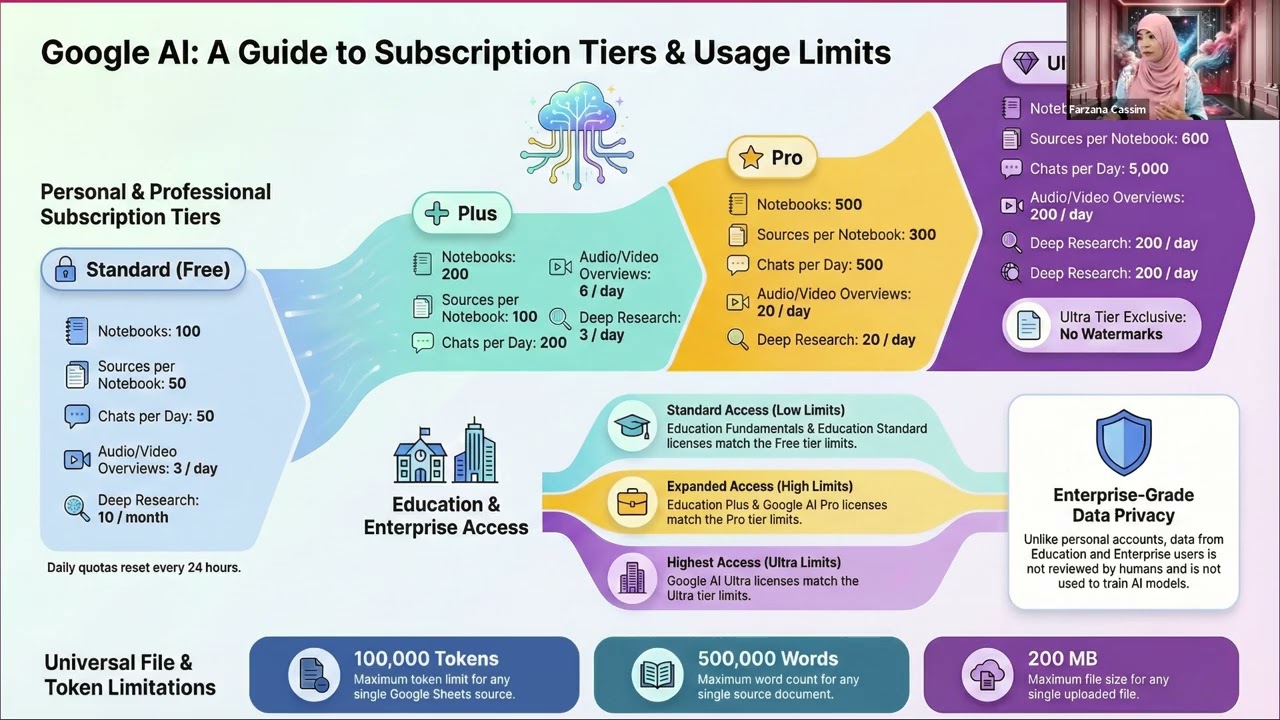
Google NotebookLM is presented as a powerful AI-driven research companion designed specifically for adult education professionals who wish to explore artificial intelligence tools with both enthusiasm and caution. Led by subject matter expert Fzina Kasim, this workshop guides users through the platform's core functionality, which revolves around three main interface panels: Sources for uploading materials like PDFs, Word documents, YouTube links, and web pages; Chat, powered by Google Gemini to facilitate dialogue with uploaded content; and Studio, where various outputs such as audio/video overviews are generated. Users can upload up to 50 sources per notebook, provided each file stays within a limit of 200 MB or contains no more than 500,000 words, though it is important to note that the system does not auto-sync and requires manual removal of old files before uploading updated versions.
The platform offers an extensive array of creative output tools in its Studio panel, allowing users to transform their source material into infographics with custom color tones, mind maps (best captured via screenshots), flashcards exportable as Excel files, quizzes with instant explanations for wrong answers, slide decks, reports, and data tables. While some features are rolled out gradually due to Google's batched update schedule, the tool emphasizes user control by letting individuals specify focus areas for Gemini or generate content based on selected sources; valuable chat responses can also be saved as notes and converted into new sources for future reuse. Privacy assurances for education and enterprise accounts ensure that user data is not used to train models nor reviewed by humans, although personal Gmail accounts may lack advanced features unless upgraded through specific negotiations with Google regarding district-provided limits.
Despite its capabilities, the session highlights certain limitations and best practices, such as copyright restrictions preventing the upload of textbook chapters or screenshots while permitting Open Text textbooks that are not sold commercially. Users must be prepared to manually correct gibberish results from flawed quiz inputs by redoing the task with specific instructions rather than attempting direct edits, and they should remove watermarks via image editing after downloading generated visuals since mind maps cannot be downloaded directly. Additionally, if a user needs to edit wording within images or slides created in NotebookLM, Canva's "Magic Studio" feature called "Grab Text" can identify problematic text for correction before sharing the final file. Ultimately, the workshop concludes by reinforcing ethical boundaries where users feed specific inputs to get relevant outputs without selling or redistributing generated materials, ensuring that technology serves as a supportive tool within defined professional and educational contexts.
Read the full video transcript
OT10 Outreach and Technical Assistance
Network.
Good morning. And I really want to say
thank you because you actually joined in
the morning on Saturday morning for this
workshop. And really it it makes my day
because um I was so worried. I said
Saturday, who in the world with the
right mind would join at 9:00 a.m. in
the morning? But apparently you have the
right mind and you join. So I thank you
so much for that. Um those of you just
like um uh Marjgerie said, I won't be
monitoring the chat. So please feel free
to ask questions or whatever it is and
she will um get to me. And um another
thing is that I um I quickly want to
know I'm not sure if I can see all of
you. So um Marjgerie has to tell me who
I know it's about cury you know you're
curious about the notebook LM but who
has you you know who have used it or
seen it heard it whatever it is in those
30 questions please raise your hand or
tell me something about it I just want
to know
Anthony says he's used it maybe once
okay
uh Evelyn says she's played around with
it played in quotation marks. Uh,
Michael used a little. Um, there's two
people that haven't used it or they've
heard of it. One person knows nothing.
So, it looks like most of the answers
right now are that they've never used
it.
>> Okay. All right. So, 9:05. Now, let's
get started. And first of all, I really
want to uh I'm sure if since you already
registered to and then you're here, it
means you know about O10. And of course,
please remember that OTN um you know
provides uh the uh the technology
training and then you know if your
organizations or if your districts or if
your schools um um need any kind of
training or support for um integrating
the technology in your adult ed classes,
please uh consider reaching out to and
you already know Marjgerie and then you
you also know some of you may already
know um Anthony. So, um, welcome and
let's get started.
So,
now I really would like to know if you
want to chat, if you want to unmute,
you're welcome to unmute or chat. I am
um I like interaction. So, sometimes I
might ask questions and you feel you
whatever makes you feel comfortable do
let me know. A quick question. How do
you do do you see the uh the image in
here? Uh um how do you see AI? A quick
short answer text whatever
or
Okay. And let me turn on let me see if I
can see my chat. How do I do this? Okay.
There we go. All right. So
while you are typing or something let me
tell you how I see it. How I see AI as
fascinating
you know. Oh no no let me start with it.
Wrong one. I see AI as such a cute,
lovely, so nice, everything I want, you
know. No, everything, almost whatever I
want. Um, I it's right there. I can pet
it. I want to pet it. It's a such a
cutie pie. But actually, it's not a
cutie pie for me because it is a tiger
behind it or it's a dangerous species,
you know. It's very uh um it scares me.
It truth to be told. Even though I am
giving a workshop on this um AI, I see
this is this is you know I see AI as
this. So hold on let me close this back.
But do you see another AI message? Um
sorry AI image that image
is sometimes people are curious about
who I am or what is this since you are
here for the curious about you know um
what do you call it yeah curious about
the nobookm
before you are curious about nobookm in
case you are curious about me here is my
little story I like to travel and I like
to take challenges headon as you can see
the train is either coming or leaving me
because I missed the train or one of
those. But whichever way you want to
take it, it's fine for me. I see it as
it's a challenge coming in and I am
waiting right there to get out of my
work after my work or my sessions are I
mean my you know when the vacation time
comes I go there and so this is who I
am. I enjoy um uh uh uh uh technology.
If you can see there is a phone there.
That's a type of technology showing. And
if you also notice I like to color like
coordinate my clothes. If you see notice
it that's who I am. I am sometimes
people don't even remember me any
anything about me but they do remember
my scarf and my colors that I you know
what I w wore at the workshop or this or
that. So just so you know I like
anything that is presentable and I like
myself to be always presentable of
course except when I'm at home right? So
don't worry, I won't talk more about me
anymore and you are here for for no book
LM and this is what we're going to do.
In case you do not remember or you
didn't read the email who the presenters
is, I am Fzana Kasim and one of the OTN
presenters. I I am also known as Odin
SME subject matter expert and I do not
like the word expert but that's okay
because the technology is constantly
changing. So I just use the word subject
matter know something um presenter I
know something only I do not know all or
no expert but I am willing to learn so
since you are also willing to learn so
both of us are here all of us are here
together to learn so let's get going
in this webinar um the objectives are
you need you will try you will learn to
understand what um no book LM is how it
works through a live uh um you know how
it works and so I'm going to show you
walk through with slides first. So uh uh
please remember I'm going to go through
slides first so I can tell you what
features and tools are available for us
to use and then I'm going to go to a
live demo and trust me I guarantee you
you will be so fascinated with it. Those
of you if you have used once trust me a
lot more. Um and then we are going to uh
uh look at the uh notebook LM itself. It
has the uh three panels um uh sources,
chat and studio panels. Those are the
three panels which we will go uh uh
explore together and um the um uh here I
already mentioned about the welcome and
blah blah blah but quick tips on file
conversions watermark and corrections
with grab text. I will be doing that.
The reason I'm going to do that is
because you're going to be asking
question. Wow, great notebook LM is
giving me these things. These are
awesome but they are in PDF format. How
are you going to make it into PowerPoint
or a Google slide? But in the future I'm
going I may have um most uh workshops on
um detailing how you know on details on
how to do these things. But this
particular workshop today's workshop
will be quickly show you these things
can be done. Yep. All right.
Here are the three panels which I
mentioned. I just want you to be
Sherlock Holmes with me. You go to, you
know, like a Sherlock Holmes, he never
touches anything first. He looks around
first. He wants to see, he observes.
This is how I learn any technology and
anything. So like I said, Sherlock
Holmes, you look around. So let's
quickly take a look around. I'm not
asking you to do a lot of things. Let's
look at the left frame. Right under the
untitled notebook, you see a frame or a
panel. It's called sources. Remember
that the word sources. It means you put
your stuff in there. Let's go to the
middle frame. And that middle frame is
chat. That chat frame is like is using
chat chatbot Gemini. You've heard of
Google Gemini and you got you heard of
um CE GBT, right? But in this case,
we're not using CGBT because it's
Google's product which is Google Gemini.
So you are using Google Gemini 3 the
latest version the brain is a
fascinating one. So that's what you're
talking right chatting with that brain.
Then the next one on the the far right
panel is known as studio. That is where
I call it outputs. All the outputs what
do you want from it? You give something
to notebook and then you chat it with uh
h um um Gemini which is in the middle
and then something has to happen right
what do you want from it let's take a
look at um nine items on the right side
or audio overview mind map flashcards
infographic data table video overview
reports quiz and slide deck I also want
you to note two areas as one area
actually one area for now one is way on
the bottom right do you see a button
black button it's called add note that
is also what I will mention later on in
the middle on the chat f uh middle
button I mean sorry middle frame you
will see around here
something called safe to note which I
will also go over so that's all it is
about the panels or the screen of
notebook LM. You now have some sort of
idea. When I now go to the next slide,
you will start to notice
uh you know uh what it is um what these
um features or tools are. So before we
get on to get to it and most of us um
have questions as I mentioned before I
like to know all about what I am going
to use because I'm investing my time to
learn this technology. So I need to know
anything and everything about it not all
but at least somewhat right. So let's f
understand they have uh plans different
plans standard free plans most of us are
not in here we are most likely in the
pro or the plus depends on your
districts the district is the one who
does the uh you know the what do you
call it the negotiation with them. So I
do not know if you wish to ask ask your
district but for now these are the four
plans standard free plan that means
anyone with a Gmail account can get it
and then plus plan of course higher you
know limits and higher usage and um a
few things pro and then ultra just a
screenshot I'm not going to go over many
any of these things much just know that
the high as you move up to the plus pro
or ultra you get higher limits as in you
can add more notebooks, you can create
add more sources or you can add get um
audio and video overviews. You you are
like what do you mean by those? I will
explain in the next few slides. Yeah. Um
um Marie everything is okay right?
Whenever you need to please unmute and
you are welcome to um uh stop me. Okay.
Uh give me a minute please.
Yeah, just remember everyone if you want
have any questions or comments put them
in the chat. I will be facilitating that
for Fana or like she said feel free to
unmute yourself if you'd like.
>> Thank you. So if you're using education
or enterprise accounts your data isn't
used to according to them is train AI
models as in a lot of AI models out
there. It is not it is not reviewed by
humans either. Whatever you chat, it's
between us or whatever, you know,
outbook that you get. So, the choice
really comes down to scale, not not
capability. You know, the tools are all
the same. You're going to get all the
tools the same, but what the limits the
limits are do did you can you get six
audio video per day according to plus or
do you get um 20 audio video uh outputs
by with their pro or things like that,
right? So that is something that you
might want to either take a screenshot
or or if you want to wait until the end,
wait for me. I will send you put the um
uh PDF file for you to um use it. And if
you are taking notes, that's yours.
Now what is Lowbook LM? It is um AI
powered uh thinking partner. I usually
think of it as my own creative
assistant. It takes takes care of my
powerpoints or you know infographics for
me. It works only with the contents you
upload it. It means it doesn't go out
unless you ask it to go and find
information or you know do a web search.
Other than that it will only work with
you. You got you you got your own agent
AI agent working for you with the
materials you put. You're going to say
what materials can I put? It means you
are going to feed this notebook LM PDFs,
Google documents, Microsoft Word, PowerP
uh uh not PowerPoints like a Google
slides, YouTube audio files that you
used to have or web links with some of
the you know uh uh uh blogs or stuff
that you want uh it to understand. You
put or you feed all these things. You
can even make cop what do you call it?
copied from you know some uh some files
and you put it paste it all kinds of
things you can feed no lm now the data
all you feed whatever data that you feed
is the only data it's going to work
that's it has it's not going to go out
or search anything unless you ask so
remember what you feed is what you're
going to get if you feed
gibberish and garbage you will gibberish
and garbage. So just know what you want
or what you want to feed, right? So
notebook LM um structure, let me explain
to you that it is organized and and and
organized around more notebooks. Each
notebook as in let's say you teach ESL
class, but you also teach academic math
and you may also have a Saturday CTE
class that you are a computer teacher.
Can you imagine? You have three programs
and you teach three programs. You don't
want to have all in one notebook, right?
So, you're going to have a notebook for
your ESA classes or class or academic
class, another notebook for your CTE
computer class. That's how the each
notebook lives in its own world. Okay?
So, think of um and each notebook, they
don't they don't talk to each other.
That's intentional. That's pretty pretty
cool. It keeps things clean and focused
and, you know, much less overwhelming
for us, right? Um especially when we are
juggling multiple projects
the sources which I just mentioned to
you what are the sources right very
important you knowing these sources are
very much important because some
everything in notebook LM starts with
the sources when I showed you the plain
screen it has nothing it doesn't know I
cannot start chatting with it because it
doesn't have any data in its brain due
to that reason you need to feed as
on the screen you can see what is it
that you can feed you can I like to use
the word feed because I want you to
remember that what you are feeding is
what is going to give you I understand
that you know the proper term would be
you input this you know you put the
sources or you give the sources but I
want to deliberately use the word feed
so please feed all these things that you
are feeding no you it's going to it's
going to only work with those feeds be
um uh w with those sources
You are in control. You can turn sources
on or off at any time. Let's take a look
at the right side of my screen. You will
see PDF, medical terminology guide,
another PDF, there is a YouTube, there
is a an Excel sheet. Notice notice that
or Google sheet. But on the far right
there is a little check box. It's let's
say I give I fed five items in there. If
I only want my notebook LM, Google
Gemini to focus only on YouTube and PDF
the the third one and the fourth one. I
can deselect the first one, the second
one and the fifth one. It means you are
instructing the notebook to only focus
on my PDF human anatomy and neural
networks. That's all it's going to work.
That's the beauty of notebook LM. It's
not going to look through every source
that are not related to. Right? So that
is something that you might want to do
when we get to the live demo. I will
show you I will point it out to you.
Limits and best practices. I must remind
you because you're going to get get to
it. You're going to say what happened to
it? Why isn't it giving me any more
information or why isn't it giving me
outputs anymore? That's when you're
gonna you will you will know why it is
each account in this case uh allows you
to have 50 sources per notebook. It
means you can have 49 PDFs and one
YouTube that's 50 sources right or 35
PDF and five uh Google docs that's 40
and then five YouTube that's 45 these
that that's what I mean by services
I think my room is extremely dry give me
a second
but the main thing to remember is
notebook LM doesn't autos sync. So you
pull you you you use the Google Doc, you
feed that Google Doc, and two two days
later you change that Google Doc. That
means you're going to have to remove
that old Google Doc.
Add a new uh Google Doc that you just
fixed. I mean, you know, yeah, you just
walked on and then you have to reync it.
Then it will get the fresh data. So
don't remember, you cannot you cannot
just say, oh, it will sync. No, it
doesn't do the sync. Perhaps in the
future. Yeah. So, whatever um uh uh
whatever fixes you make, always remove
the old one, old file, and then you can
just come back and put the new one, sync
the new one. 500,000 words per source.
So what that what that what that means
is let's say you input or you feed one
PDF that one PDF must can have up to
500,000
words nobody's going to sit down and
read none of I don't think I even well
yeah there are you know pages and pages
of um uh
documents that you may have in that case
be mindful only five up to 500,000 words
per source means per file it can take.
Now 200 megabyte megabyte maximum file
size. It means if your PDF or your
YouTube when you upload not YouTube the
the files that you upload must can have
up to 200 megabytes. So if you have
audio files or your own video clips that
you have it cannot go beyond that. So be
uh know understand that. Yeah. uh avoid
uploading files that you know you don't
have right to and then also the uh again
I mentioned uh you must manually
re-upload files if they are um updated
ex updated externally so let me quickly
see
anything that I need to
uh answer major or you're I'm good
>> um there is a question I don't know if
you want to cover this now or towards
the end um what if our district has not
entered into to an agreement with
Google. I work at two districts and I
have access at one and not at another.
Can I access a different way or does it
have to be only through the district?
>> Yeah, you can have your own uh Gmail
account and just use it. And if you
don't want um Yeah. So that's your own
personal one. And then for the um for
the one district that you work for, if
they allow you, you use it. It's only um
you know the I think it's on the
previous page. It says here
uh let me quickly see it says um
ah your data isn't used to train AI
models and it isn't reviewed by humans.
It means you're cool, you're okay as you
can see, right? So you do not need to
worry too much about it. But um the
district has so many district many
people to go through. So they don't have
time to look at our chats and besides
chats can be deleted and no one you know
whatever chats it is not reviewed by
humans. So that's something I don't know
if I address answered your question.
Yeah, she said that the issue with my
own is I don't have the same features
and I will need to pay.
>> Sorry, sorry, I didn't get it.
>> Uh, it says the issue with my own is I
don't have the same features so I will
need to pay was the comment.
>> Uh, yes. Okay. So, I let me tell you I
have four different accounts. One, I
have a Gmail account. Because of that
Gmail account, I have whatever the
standard ones I have. two, I work for um
the district our LAUSD. I have a either
plus or pro, I do not know. I cannot
figure it out yet and they have no one
tell can tell me yet. So that means I
have higher limits and you know usage
and usage limits. That's one account.
And then I also work for O10 and O10
account I can still use u um the Google
um sorry the Google notebook LM that's a
third account. Then I also have another
Gmail account that I paid for. Why did I
pay for it? Because if I want to learn
something, I need to learn everything
about it. So due to that reason, I paid
I think it's a $67 per month. So I paid
that account that is for I have four
accounts and if you are looking at what
I just showed you, it means it has to do
with your district and it has to do with
your account that you are not getting.
So um and plus uh if you wish to at the
end I I I would like to uh you know
address more if you wish. Yep.
All right.
Do you remember when I showed you the
plain in interface of notebook LM there
is a in the middle called chat panel
because you on the left we talked about
sources panel. So now we're going to
talk about chat panel. It is like as the
way that you chat with the Google
Gemini, the way you chat with your
Google uh sorry chat GPT. So that is the
area and so it acts like a expert with
you but with your uploaded sources. So
it means you only talk to Google Gemini
in this case is the notebooks. Your
notebook is Google Gemini by the way. Um
you know it about the sources that you
uploaded. You can ask for summaries,
connections between these, you know, uh,
files that you uploaded or gaps or even
help refining ideas. So, it reads
everything for you. It watches all your
videos for you and then it's ready to
have dialogue with you. That is where
the chat is. And it does not hallucinate
because what you feed is what you're
gonna get. You understand? So if you
feed gibberish which I mentioned before
you're going to get gibberish
information within that sources that
those sources that you put. Do you
remember that's the chat? Okay that's
the second panel. Now starting now this
slide I'm now f going to focus on the
third panel.
It's called the studio panel. in that
studio panel one of the seven or some of
you may not have all but some of you if
you don't have all is because Google has
millions and millions or whatever
customers so they up give the updates by
batches by batches it means some people
will get certain um features like audio
video reports mind map and so on some
may not have infographics yet because
it's still sending out batches. So audio
overview is great when you don't want to
sit and read. You have materials you
uploaded but you need to know about what
you uploaded, right? Can you imagine?
Now this audio output will lets you uh
it will talk to you so you can listen to
it while you're driving or whatever,
right? So that's the beauty of this
notebook LMF and it can turn your
sources into podcast style
conversations. So there will be two
hosts, two AI hosts talking about your
material. Can you imagine that? And then
you can interrupt by join the
conversation and you can say wait a
minute I don't understand this
particular term you are talking about
and then it will go back and talk with
you literally it's so cool. So there are
four different types you have deep dive
brief critique or debate. So you can
even debate with your AI host two AI
hosts. That's the audio overview. Yeah,
please even if we cannot get through it
all of it during this particular
workshop I plan to do you know series on
certain features and literally amazing
um um tool that they have and this one
is known as video overview that's
another tool under
um what do you call it su studio panel
right so video overview I want you to
first look at look down the last
sentence over there it says cannot
import YouTube videos older than 72
hours. Just pay attention to it. The the
statement is not true. So I want you to
hold your thoughts. Okay. So video
overview focuses on turning complex in
like ideas that you put in to visual
explanations. You know it works from
transcripts uh uh you know the videos
that you like YouTube videos. So not the
video itself which is like important to
know. You can choose different styles
like um uh you know what kind of
explanations do you want? You want it in
a detailed explanations of your
materials or you just want the quick
by-size you know um versions and then
visual styles mean when you when when it
creates a whole little video for you.
You know what type of background what
kind of uh uh you know designs that you
want and you can adjust those things
configure those things right. So it is
another way to see your materials that
you fed from a different angle. So it
gives you a little video overview of all
your materials. First audio, now video.
What about next? The next one is mindm
map. For example, you you fed um uh uh
30 uh PDFs and then one course outline
and then one uh some kind of you know
textbook materials and all these things
but you do not know what chapters and
within what chapters what the materials
are talking about right so the mind map
tells you for example on my screen I was
working on a medical terminology and for
the medical class for example right so
the main thing here is medical
terminology ology. That's the the whole
idea of this. My topic is my notebook is
but sub you know um chapters or books or
or ideas within this are medical word
elements maybe clinical AI. So it reads
all of your materials for you. It sorts
out all your materials
you know into categories where they
belong and then it gives you a quick
overview of oh is that what I'm
learning? Ah so when I learn my clinical
AI in healthcare I will be learning
about key technologies benefits and
applications what the challenges are and
so on so forth because we are no lawyers
like that we can read all these you know
so many thousands of I don't know movies
always show this you know high stacks of
papers that they read in 20 minutes
that's impossible for us to read I do
not know about you it's impossible for
me so this will give me a quick mind map
telling me oh these are the materials
you gave these are the you know sub
materials or subchapters that you're
going to be reading about or learning
about. So that's how the that was how
the um my works. Now, Notebook LM can
also generate structured documents for
you. For example, you need um reports,
you know, so things like study guides,
briefing docs or FAQ sessions or
professional reports. This is like
reports will allow you to have things
you know study guide style or you want
your materials uh uh uh to be I mean you
want notebook LM to use your materials
to come up with policy briefs or any
kind of you know strategic memos it will
bring you all these things after reading
all your materials right so that is
that's report to I'll be very honest I
don't use reports much but I plan to uh
dig uh uh you know learn more because
it's very um I'm sure if it is there it
means it must be useful. So if you wish
to depends on what you do please go for
it. Yes.
>> All right. We have a couple of questions
here. Uh the first one is you can't
upload a chapter of a textbook because
of copyright. Is that correct?
>> You cannot upload the screenshots. Is
that
>> you can't upload a chapter of a textbook
because of copyright? Is that correct?
>> That's correct. And then so yes I um I
remember seeing um either a reading or
listen to an YouTube it says open text
um has uh uh uh textbooks that um they
use but here's the thing though I did
also here you can use the textbooks if
they are on PDF but you are not selling
it you are using it to train remember it
only it doesn't um um uh uh it doesn't
get trained uh uh to other you know
models or for other people. It is just
for you. So you can upload your own
textbooks as long as you're not selling
or doing anything about you know with
your textbooks. So I I I I cannot say
all 100% but I did come across with some
videos explaining that you can just
upload but it stays within your own
notebook LM because there are no humans
reviewing your materials. So that's
something you may have to consider. The
chipito open text has a lot of
textbooks. Perhaps they uh may be
related to your materials. Maybe you
might want to first try using them and
then if it works then um textbooks you
may want to reach out to the company and
ask them if it is uh you know usable as
long as you're not selling your
materials your own powerpoints or your
own uh you know PDFs that it spits out
for you.
>> There's one more question. Yes.
>> Um can you put links in the mind map
subcategories?
>> So mind map uh sorry mind map is um uh
it's going to give you a when you
download it it is going to give actually
I have tried downloading my download
does not allow. So I am thinking my uh
my district network may be doing it. So
I could not do so what I do is I
screenshot
uh piece by piece and I piece them back
in Microsoft Word um and that's how I
and then I save it as PDF or something.
So you cannot download even if you
download it will be only PDF and you
cannot add anything uh you can edit it
later if you have knowledge of other
tools outside of Google notebook LM. At
this time the restriction is no you
cannot. So mind map you can do only do
screenshot. If you can do click download
and if it works congratulations at this
time it doesn't work for me even though
there is a button. Now on this slide it
says flash cards same deal.
If flash cards um you all know what the
flash cards is but when you cannot
download them you cannot edit them. You
can only what I do is actually sorry you
can download them but it will be an
Excel rows and columns format because
flashcards mean front and back correct.
So front and back means two columns. So
it will give you for example a bale bail
b L bale on the first column and then
what does bell means or b for bale or
something like that right? So in that
case two columns and it will be on Excel
format. In the future I am going to do
another notebook and focusing on how to
extract this type of you know Excel and
make it into a flesh uh flesh card which
I did for our school um for our wasque
meeting I mean sorry was preparation. I
created a flesh copy which I will
quickly share with you and you're going
to be like what you could do it and yes
the answer is you could do it but
unfortunately I cannot fully show you
here because of my 1hour workshop over
here. Okay
flashcards as you can see whatever
materials but but remember it says
generated cards cannot be edited after
creation. So it is true but I will show
you um a few things how we can do
quizzes
um quizzes you can create quizzes out of
your materials of course right you you
guys are teachers some of you uh may may
be um teachers some of you may not be
but either way whatever um you know uh
uh uh materials that you put it can
create questions directly from your
sources and it can also explain when you
click on you know wrong answer it will
tell you where you can even find that
information from that source that you
got. So, it's it sites, you know, in
there for you. Site is right in there.
That's so cool. Um, here, did you now
notice from the previous slides? Look at
the background colors. And now look at
this that it's by design. I deliberately
made it so you will all remember now
because I have found out majority of the
people are so fascinated with
infographic notebook LM can give oops
what did I do hold on
the slide deck that is PowerPoint it can
give or I call it it's oh why are you
keep moving slide deck and slide deck in
this case when it gives you it will be a
PDF but I will briefly show you how I I
I I change it. And then there is a data
table and the
and the data table was just added in
January and I found out about it while I
was traveling. I was just quickly
looking at something and I said, "What
is a new feature that's added there?"
And so slide decks are perfect. By the
way, I really want to focus especially
on infographic and slide deck. And as
infographics are great when you want to
see like relations, relationships and
the key ideas visually. For example, our
wasque preparation we have action plans.
There are six action plans and but look
at reading through all these things. I I
cannot remember what the what the
heading of the first action plan is
anymore. Right after you read the action
plan too. So now with the infographic
you can clearly see what action plan 1 2
3 4 and five are. That's when uh
infographic comes comes in handy. Slide
decks are perfect when you need
something presentation ready. And so did
you notice all these previous slides
that I had done? They were all made with
that slideex and some with the
infographic. I did none of them. You
might be like did you just cheat? I
would say 50% credit goes to me and 50%
credit no let's call it 75% credit goes
to me and then the 25% goes to uh
notebook LM because I actually have to
give instructions as to what color tones
I want what are the you know things that
I want so due to that reason um um I'm
taking some credits here but I cannot
take full credit because not LM does
work it does its work so as you can What
you are looking at now is actually
infographic page, a PDFG or a JPEG uh
image that is now used as my slide to
explain to you a quick explanation of
inographic slide deck and data table in
one screen. So those are three different
tools but in one screen here. Any more
questions or uh we good? Uh there's one
question that just popped up. Can you
use the quizzes like download to use
with your class?
>> The quizzes you can download but you
cannot. Um
no uh I'm Can you hold on to that
question because I
don't have full answer but when we go to
live demo in a few minute in a couple of
slides I I want to see something with
you and I I will then answer you. So
please wait for me. Thank you. Um, thank
you. Managing your insight. Do you
remember when I showed you the first
page or the first few slides the plain
interface of notebook LM? I told you to
pay attention to the note edote and save
to note on the bottom right and in the
middle of chat screen. Those are the
two. Safe to note means when you talk to
CH uh sorry to Google Gemini in the
middle panel
it gives you information right you and
you and check you and Gemini were
talking and then you like certain thing
that it gives you then you safe to know
it means the chat that you were having
or not the chat the um the materials the
response or the responses that it gives
you that you can save it to know because
they are so good, right? The
summarization was so good, the summary
was so good or the the information was
so good. You want to save that note and
then use it in the sources. Can you
imagine how cool that is? You can reuse
it, copy it or not copy it, save to
know. It goes to your studio panel and
now you can switch it to sources. So the
conversations between you and Gemini can
be reused as part of your sources
because some of them are so good, right?
It gives you incredible answers or
something that is called safe to note.
Now another another thing is this. What
if you are a writer? What if some of you
like to take your own notes and you have
your own you know personal notes that
you have been doing? scan it, put it or
you can type it in right then and there
and then they become part of your notes,
part of your projects and that can be
used as all. So you're going to be like
wait a minute I'm working on this how
can I make this notes to be part of it
no problem you can either type it up
scan it or whatever it is and you can
put it make it into a note and it will
be used as your source one of your
sources right so that is the cool thing
that you could do sharing and
collaboration we should just understand
that uh personal Gmail allow with up to
50 users you can just share your your
notebook
And then for our us most of us work for
the districts enterprise and education
uh uh uh um have unlimited sharing
within your own districts right so you
can just go ahead and share public
sharing is disabled it means I cannot
share it to a Gmail account or a Yahoo
account um and and you can of course
just like Google you can uh control
whether it is a viewer or editor only um
role so that's what it is now the
question is what? Show me quickly what's
the let you know how do I get to it?
You're going to get to it with
nobooklm.com.
And so I am going to go start get
started with nobookm. We're going to add
some sources and we're going to get to
it. Let's go for the live demo and I'm
going to quickly share my other screen
is here. My other screen is this one.
So, can you all see my Google notebook
quickly? Majorie, tell me that you see
my Quickbook. I think
>> Yeah, we see untitled notebook uh in the
top.
>> Yes, there you go. And now I'm sharing
it. Oh, did I not do that? I don't know.
Something happened.
>> Uh we're still seeing that um add a
source to get started in the middle.
>> Okay, good. So, you are seeing my
notebook LM page. Is that right?
>> It looks like it. Uhhuh.
>> Okay, good. Yeah, because the the green
bar disappeared on me. That's why. All
right, so sources. Let's go ahead and
add sources. Before I add sources,
remember you go to notebookmoogle.com,
login with your district, login with
your Gmail, whatever it is that you want
to login with. But remember, no, it
cannot be whatever it is. It is either
your your district or the Gmail, no
Yahoo or or or any others, right? So add
sources. It means here you can upload
files or I can copy and paste a video.
So a YouTube video or something. Here is
the Google drive. If you have materials
on your Google drive or even if you have
a copy text that you know things that
you only want particular paragraph you
copy and paste right there and there. So
upload files quickly. I'm going to go
ahead and quickly show you how you
upload things. Right. So in here for
example I'm going to just quickly click
on it. notebook LM I open it here is my
my PDF right or if I have a YouTube and
you can simply go to a YouTube.com
just uh let's say here we go I like what
she says and this is it I copy her link
I come back to my YouTube websites voila
paste it insert it so what I'm telling
Gemini now is I need you to only focus
on these two items nothing else but
these you. So it does not it's not going
to go find anywhere unless you really
want it to go and find something else.
Here it is. You can say find more
notebook
LM related or whatever it is that you
want to ask right or you want to know
about the particular topic. Now it's
going to go and find it for you and
nothing to do with these two. But once
it is here it will give you what you
want. Now look at the chat in here.
Let's say this is the summary of what I
put this summary. If I like it, I simply
save to note. Look at on the right side.
Voila. This note is saved. It's exactly
the same as this. And if I like this
note and I want it to become another
source, I simply click on the three
dots, convert to source. Now watch the
left panel.
Wow. Here is the third source. This
source, this becomes a source. Now it
will now pay attention to it. But let's
say I am only interested in
YouTube. I want YouTube is the only one
I want it to go and watch. Tell me about
it. What's going on about this YouTube?
Cuz I don't have time to listen and
watch. So it's going to watch it for me.
And now I'm going to ask it to give me
infographic on this YouTube. So if I
click the little uh infographic edit
button here, I can give instructions.
Create
colorful
infographic
with blue and purple
tones
styles
with
beautiful
realistic
looking images. Trust me, I just don't
have time so I cannot do a lot of
things. But anyway, this is my
instruction. You can have landscape
mode. It means the pictures that you
were looking at my the the slides that
you saw or you want to make it into
portrait. It will give it will be
perfect for your long uh big digital
screens or a square. So, I'm going to
just leave it as is and then I'm going
to say generate. So, it's going to go
ahead and generate it for me. It's
working its magic. And here quiz.
Someone asked me about quiz. I really
want to go through that here. You can
ask for a fewer quizzes means a few
questions only. You want it easy out of
this video. Why is it out of this video?
Because I only selected one YouTube to
focus on. So now you can say whatever
you want and it's going to go ahead and
generate a quiz for me. Once it is
finished on the right side, as you can
see, it is working now. It's doing its
magic. And once it is ready, it's going
to give me and I want to I hope it's
going to do um give me good fast enough.
Let's quickly look at something add
note. If I click on add no here it is I
can type whatever note I want to type
and this note will can become a source.
So if I say something it will use it now
as my source. So I all I have to do is
convert to source. On the left side I
have a new note. You can also give a
name you know whatever it is that you
want to give a name
updated note whatever. This is just you
know me changing it. But do you notice
this updated note and new note they are
not syncing. So you're going to have to
re either remove if you have changed
something in here or you rename it.
Remember one thing please updated node
you can only
um sorry when you click on it you can
come and change it here but it will not
sync. So you may have to re convert it
to source. This is important. Most of us
use Google. So please do not feel
overwhelmed with all the things that I'm
showing you. What you see in here
everything can be clicked and just
simply it's very easy to understand uh
you know menu here. So if you want to
convert to source you simply convert and
if you want to export to docs because
you like it very much your old note was
so good then you just you know export to
docs and so on. Now let's take a look at
the infographic we have been waiting
for. Let's see how it what it does to to
for us. It watched the video the YouTube
video that I gave. I specifically said
blue and purple tones. So it gave me
blue and purple tones and the the
realistic looking images. So as you can
see they look real not realistic but it
is really relevant images right that is
called infographic. Now on the bottom
right do you notice there is a notebook
LM watermark. The way I do is I simply
download it. I'm going to go download
it.
Once I finish downloading I get the
image here. I simply click edit on my
image.
and I save it. So voila, I no longer
have a notebook LM um watermark. That is
your infographic. One thing that you can
do right next is
because we are almost running out of
time. Five more minutes which is 4
minutes left. Let's look at here
knowledge notebook. Do you remember the
quiz that we created? Here is your quiz.
As you can see I do not have any
download button. I cannot edit, I cannot
change. That's the one of the
limitations that we have. So, if you
look at it in here, let me quickly make
it here or maybe make it bigger. You
might want to use quizzes for your
in-class teaching lessons with the
students while the students are here
right there and there learn it together
and we're going to select something is
B. Oh, that's right. It even if it is
right and some of your students will
say, I don't really understand why is it
right. Then you it will click you click
on explain and it's going to explain
in here in the middle. Oh hola
you see it is trying to pinpoint the
mech mechanism of why it is right. So
it's doing its job. It's trying to
explain to you why this question is
answer I mean this answer is correct
where it got it from inline sighting
right it's pretty cool. All these things
are right there and there. And that's
how it is. Next is another question and
I I I made a mistake here. I'm going it
to explain again. It will do the same
thing again. You cannot download. You
cannot change. If you don't like it, you
simply delete it and redo the redo it
again. So in my case, let's say your
questions are wrong in that quiz or the
answers are wrong. it gives you a some
sort of gibberish something. In that
case, you might want to do is simply
delete it. You don't like it anymore,
you simply go you go and do another quiz
and then very specifically instruct what
to do. Instruct notebook lm what to pay
attention to. Maybe you might want to
say pay attention to spelling. Make sure
you know the contents are effectual and
everything. So that these are little
things that you can do. slide deck means
you just create a whole you know
PowerPoint out of it. I actually am
almost done and the last thing I really
want to tell you in my um my uh
objectives was something I mentioned
grab text. What I mean by grab text is
those of you who want to upload because
there is something wrong with particular
slides. Do you remember I mentioned
under the video slides I had a yellow
highlights and I mentioned there is
something wrong in there. So let's say I
need to fix that slide and if I need to
fix that slide I need to go and find
actually I'm going to reuse it here. You
simply file find that file and here it
is. Do you remember it says it was
something wrong right? So if you click
on it in Canva, those of you who use
Canva, you go to edit,
you go to Magic Studio. In the future, I
plan to do it in details. By the way,
this is enough for you to get started
with it. That's the reason I am really
rushing through. Magic Studio has
remember background remover. Oops, I
clicked on the wrong one. I'm not trying
to remove the background. I'm just
trying to get to grab text. It's called
grab text. Pay attention to it. Magic
studio grab text. What it does is it's
going to this image and trying to find
where the problem is. If you think there
is a problem, you can change the wording
or whatever. For example, let's say I
want this to be the one that I need to
fix. Grab.
And now I can go ahead and change the
wordings. In this case, maybe I want to
say or r something like that. Right? So
if I want to do this or things whatever
I need to change, I come and change it
here. Once it is done, I can now share
it, download it. That's called grab
text. That's a little tool that I use to
fix my um to fix any kind of you know
wrong spellings or any kind of issues
that it has. So that's simply it. So it
is 9:59.
I actually can don't have anything else
to share. Thank you so much for staying
and and and and enjoying my crazy color
tones.