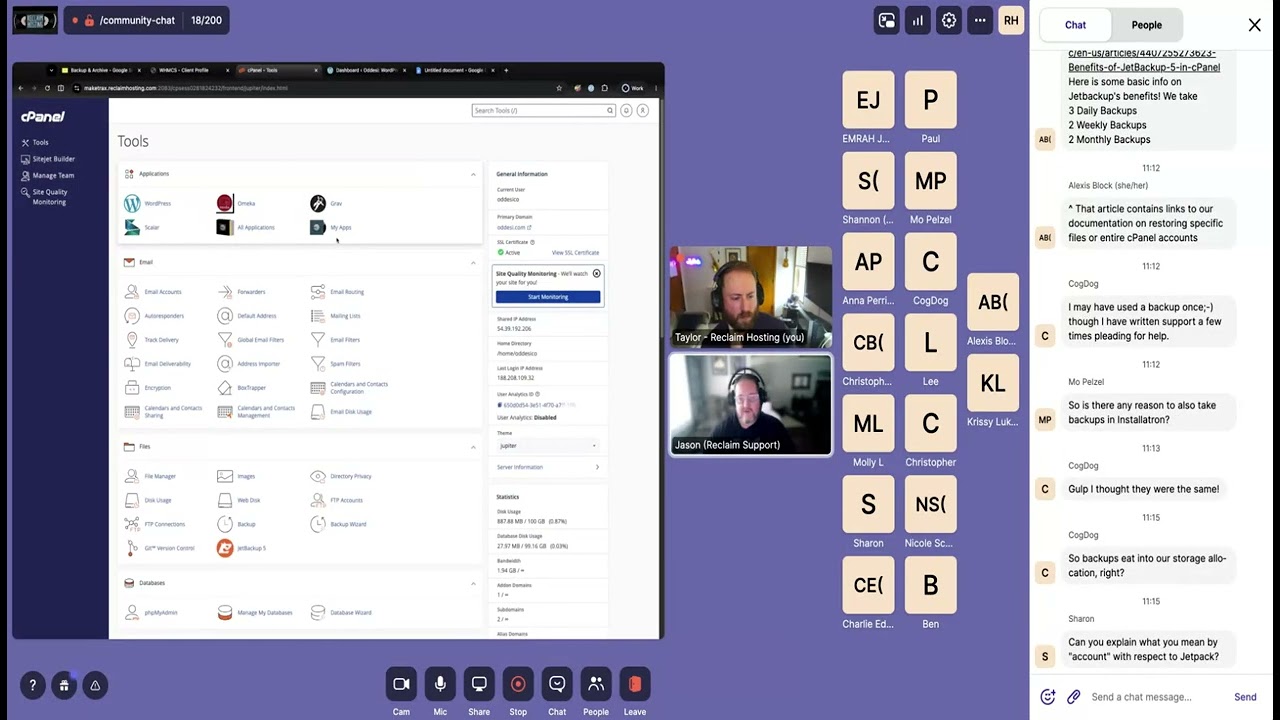
Video summary
The session begins by clearly distinguishing between backups, which serve as temporary copies for recovering sites after failures or attacks, and archives designed to preserve content and user experience over the long term even when a site is retired. Presenters from Reclaim detail specific backup strategies utilizing three cPanel tools: JetBackup acts as the primary system maintaining thirty days of daily, weekly, and monthly backups stored separately from user quotas for restoring entire accounts or specific elements; Installatron offers application-specific backups with a limit of two per account on shared hosting to provide an extra layer of protection before updates but consumes server storage if not configured for remote pushing; and Full cPanel Backup is reserved primarily for migration purposes rather than routine recovery, storing files within user quotas and requiring WHM access for restoration.
For long-term preservation strategies focused on archiving when a site becomes unmaintained, the recommended approach involves creating static HTML copies using tools like the Simply Static WordPress plugin to ensure longevity independent of server dependencies or database updates. However, experts advise maintaining both these static archives and downloadable dynamic backups simultaneously so that interactive features lost during conversion can be restored if necessary later. This dual strategy ensures resilience against data loss while preserving the ability to recover complex functionalities should they become needed in the future.
The discussion then expands on various tools for archiving websites with a specific focus on WordPress sites, noting that documentation is often supported by video tutorials and community resources like Discord or email. While local crawlers such as HTTrack and SiteSucker are effective for static sites, they may struggle with dynamic content generated via JavaScript or React and face concerns regarding their long-term viability compared to modern web standards; in contrast, the Web Recorder suite excels at handling dynamic content by rendering pages within a Chromium browser before capturing them. This solution supports offline viewing through local files or cloud storage like Google Drive without uploading data externally, offers built-in search functionality, and can even capture video assets from platforms like YouTube, though success depends on site complexity requiring some trial-and-error.
Advanced users have access to custom scripts that combine HTTrack with Browser Tricks for bulk crawling across multiple URLs using Docker, producing outputs packaged in formats ready for hosting on cPanel or GitHub Pages via proxy solutions. The session concludes by emphasizing the importance of ongoing development as web technologies evolve and highlights available resources such as Reclaim TV videos demonstrating script use cases originally developed for archiving university blogs. Ultimately, while many tools exist to aid in preservation efforts, selecting the right combination depends heavily on the specific nature of the website being archived and the need to balance static longevity with dynamic recoverability.
Read the full video transcript
There we go.
Yeah, thanks. Thanks everyone for for
showing up today. We we appreciate it
and what while we've been doing these
kind of uh
uh
prof dev focused uh community chat sort
of sessions. Um
uh Jason and I here are to do our June 1
on
um
long-term stuff on archival and
preservation, things like that. And um
we're really excited. It's something
that means a lot to us at Reclaim. And
while we've definitely included some
things on like web archiving and we have
like documentation on how backups work,
stuff like that um that we've done at
both our knowledge base in workshops and
streams and things over time.
Uh we wanted to kind of give a little
bit more, you know, uh overview of
how we kind of think about these things
at Reclaim and and stuff that we end up
questions we end up answering for folks
a lot when folks come to us with
projects and things like that. Um so
we're going to kind of give you a lay of
the land as far as we how Reclaim kind
of thinks about some of these things,
tools we like to use, things we like to
encourage people to strategize around,
that kind of thing. So uh hopefully
you'll get something out of Jason and
I's uh session today.
Um and [clears throat] uh with that uh
Jason, do you want to pull slides up or
>> Yep, sorry. I was just doing that. Is
that everybody can see that?
>> Yeah, yep.
>> Okay, perfect. So yeah, today's session
is it's going to be a very informal chat
about site preservation. Uh we're going
to talk about two different concepts
that are very similar and sometimes
users kind of use them interchangeably,
but they're actually a little bit
different. That's going to be backups
and then archives. Uh so
most of you, I'm assuming you're
probably a little bit more familiar with
the backup process uh than we are with
the archiving process. Both are going to
involve saving copies of your websites
or digital projects,
but they're designed to solve
different problems. So, if you are
familiar with the backups, that section
might be a little bit of a recap, but
we'll cover that first and then we'll
move on to the strategies for
archiving and preserving the digital
projects. Um
So,
the difference between the two, what is
the difference between the backups and
the archiving?
The simplest way to think about this is
that your backups are there for recovery
and your archives are going to be there
for preservation. So, if your site
breaks or your site get attacked, maybe
something deletes something important,
backup is is going to help us quickly
recover that site and restore it for
you.
An archive on the other hand is not
really intended to restore a live site.
It's intended to take a snapshot of the
site as it is and preserve that content
and the experience of that website for
future access.
Um another difference between your
backups and your archives is the backups
are generally temporary. Right? So, you
might have a backup schedule where
you're backing up your site daily,
weekly, or monthly. Those are going to
be temporary and those are going to get
overridden as new backup backups are
taken. The old ones will get pruned away
to make space for the new ones.
Archives on the other hand are meant to
be permanent. So, as I said, we're
taking that snapshot and then that is
meant to be a stable
version of the website that's accessible
over time.
So, let's first look at what backups are
and why they matter. As I said, things
can break, right? So, if you're running
a WordPress or an Omeka site, you can
have plugins that fail, you can update
the site, the update can go horribly
wrong,
and the site can break. So, it's good to
know that we have a previous version of
the site that we're going to store
quickly
if those things happen.
One thing um
I think a lot of users do is they're
very good about taking backups. They're
not so great about testing backups. And
it's worth periodically verifying that
your backup process is working for you
need it in an emergency.
So, what I recommend uh to anyone who's
not already doing this is maybe to set
up a uh a dev site or a dev URL in your
hosting account and just periodically go
in and test those backups. Take your
most recent set of backups and restore
those to a test site and just make sure
that when you do restore them,
everything works and everything loads.
Uh you don't want to get to a point
where you need a backup, something goes
wrong, then you go to restore it, and
you find out um you know, the backup's
not going to work. So, it's always good
to test those things um and make sure
that you can actually restore them with
what you have.
>> It It's also I think this is an
important point to make because of
course like
when when when we say test a backup, I
think um you may be [clears throat]
uh one one question we have that will
folks will pres- um ask us often is sort
of like, "Well,
you guys at Reclaim provide a backup
solution for my cPanel account. Does it
do Don't you test it?" And to the answer
is, "Yeah, we test We test our backup
system. We look at logs, you know, we we
we make sure that the system works.
But testing a backup, if you've ever had
to test a system like this in an IT
scenario, you'll know is much more about
does the tool
is the tool working? It's also about
understanding what elements get backed
up and what don't. Sometimes backups
include things that you might not expect
or don't include things that you would
expect. For a basic site restoration of
I want to take this one site and restore
it, that's probably relatively easy to
figure out, but what happens and what we
see happen um is sometimes folks won't
consider the fact that their site is
fetching data from this other site, you
know, in a complicated way. Maybe a
developer set it up or via some plugin
and didn't think about the fact that
these are actually kind of connected.
So, testing a system like that is about
sort of testing
backups in your ecosystem of your
website, especially if it's something
important.
>> So, if you are taking backups um
through Reclaim, we have three sections
in cPanel um where we can get backups.
So,
uh for most day-to-day recovery
situations when I'm working in support
and I'm looking at things, um JetBackup
is usually the first place
I look. This isn't something you need to
install or configure. Um it's there by
default and we are automatically
maintaining about 30 days worth of
backups for you uh in JetBackup. So, at
any at any time
uh
at any given time in your account, you
should have three daily, two weekly, and
two monthly [clears throat] backups that
are available here uh through JetBackup.
And JetBackup is nice because we can
restore an entire account if needed. So,
if all your applications are failing, we
can restore uh the entire thing. Uh but
it also makes it easy to restore
individual files, uh databases for
applications, etc. So, the flexibility
makes it really nice cuz we can just go
in, we can restore one application, or
we can restore restore the entire
account uh as needed. And as I said,
this is typically if a user comes and
has a broken site, uh this is usually
the quickest and easiest way for me to
go in, um find the backup, and restore
that for them.
>> There's also uh sorry.
>> No, go ahead.
>> I was going to say, it's also kind of
cool if you haven't poked around
JetBackup, um there's more in there than
you might expect in terms of options.
So,
um as Jason mentioned, you can do a
whole account, you can do um
just individual files or folders or or
databases, but there's all kinds of
other stuff in here. So, it includes
like backups of your
um
of your
uh uh domains, um which is like your DNS
records and and host information. So, if
you change that sort of configuration in
cPanel and you mess something up, you
can even restore that.
Um, and uh that that all that kind of
stuff can be handy. Even if you don't
want to directly restore it, you could
download it and examine it and see like
how was this set up a week ago, you
know, and kind of uh that that that's
something I've used more times than I
might have been
before I knew that option was there.
Um, then I had initially thought would
be useful, but sometimes having that
configuration data just to look at can
be handy in certain cases.
>> So, let me jump back really quick. I
just I kind of click through this really
quickly, but if you're not familiar with
JetBackup, um you can find it in cPanel
it's under the file section. Uh
JetBackup 5 is here.
Uh so, if you click that, it's going to
take you into the JetBackup 5 interface.
Um, and then you have all the options
for your backups. So, let's go throw out
two scenarios here. Um, let's say you're
running three different sites. Uh you
know, let's just say three WordPress
sites. You updated one yesterday and it
broke uh and now you want to restore
that. Uh let's say the other two haven't
been updated in three months. So, we
don't have to worry about those. Uh all
the full backups are here. We can just
come in um
you know, let's say I want to go back
three days. I can just select the full
backup here, click restore. That's going
to restore the entire account, all the
applications that I have in here. So,
that should fix the WordPress site that
I messed up yesterday via the update. Uh
the other two since they haven't been
touched, uh it doesn't really matter and
they'll just go back to that same state
uh as well and that should get
everything working.
Uh a different scenario might be if I
broke that website the WordPress website
yesterday, but I also have those two
other sites and they've also been
updated within the last day or two. So,
I don't want to restore those. I want to
leave them the way they are.
Uh JetBackup allows me to come in here.
Uh so, each application is going to be a
little different. Uh for the WordPress
scenario, I'll need to restore the site
files and the database. So, I can come
in here. I go to June 13th backup.
And let's say it's just my main site.
So, I just need to restore the public
HTML file
or directory.
I can come down here and select that.
It'll show me that I changed that file
and I'm only going to be restoring that
one directory. I can restore that here
by clicking restore. And then after I do
that,
>> [clears throat]
>> excuse me, I can jump over here. I'd
find the database that corresponds to
that WordPress site.
I'll choose the backup for that
database.
And I'll restore that. So, JetBackup
allows me to come in here. I can either
restore all the applications
or I can come in. I can just find the
files, the databases, whatever I might
need to restore for the specific
application, and restore those
individually, leaving the other
applications alone.
>> So, there are a couple questions
and that I kind of wanted to address
here before I move further. So, Mo
asked a good question. Is there any
reason to take backups in Installatron?
So, this is sort of
>> Yeah, yeah. I'm going to talk about that
in like just a second, too. So.
>> Oh, okay. Yeah.
I'll I'll we'll wait to that and we can
if we need to elaborate on it, we can.
But, there there are sort of different
things that it it is good for,
essentially.
>> So, okay. Let me jump to that. So,
Installatron backups,
Installatron backups are there, too.
This is another backup option we have in
cPanel. And this is good. Installatron's
nice because it just it gives you
another layer of protection. And it's
backing up the individual applications,
whereas JetBackup is backing up the
entire account and allowing us to
restore individual applications and
Installatron is taking application
specific backups.
Uh so this can be really helpful. Uh
like I said, if you have like a
WordPress plugin that's causing an issue
or um an update that's affecting one
site, you need to restore that. Uh this
might be a slightly quicker and easier
option than going into Jetbackup and
finding those individual files in the
databases. We can just come in here. Um
and just restore that individual
application. So
let me jump back over to cPanel. You're
going to find
Installatron. So if you go to your
applications, my apps list, you'll see
Installatron. It'll give you your full
list of applications here. You can come
in here and manually back up your
applications at any time. So each
application is going to have this backup
button. You can click those to take
manual backups of the site.
Or if you actually click into that
application and go to the settings
section,
there are the auto backup configurations
here, too. So you can set this up um
Typically we see this, we do the one
weekly and one monthly. If you store
these just on the server, it does limit
you to two backups. So most people do
keep them on the server and they just do
the one weekly and one monthly. You can
also save these to any backup location
you want though. So you can set this up
to go to
uh your local machine via FTP, Dropbox,
Google Drive, whatever you might want to
use. Um and then you can set that
automatic backup configuration uh
however you want to use that.
When you do have the backups, there's
the my backups tab uh at the top here.
So once you've taken backups in
Installatron, you can just come to the
my backups tab. You'll see all the
backups you have available. Um if you're
storing them here on the server, uh
you'll see them all listed here. And to
restore it, you're just going to find
the one you want to restore,
click on the hamburger menu, uh and
click the restore button to restore that
backup. So
uh as I said, it just makes it a little
easier if you need to restore a single
application uh rather than going into
Jet Backup, having to know which
database you need to find and restore,
um finding the file directory, and doing
that. Which, you know, if you're doing
it often enough, isn't that difficult,
but it just takes those steps out. You
can just come in here and restore the
application via Installatron.
I will say it is nice to have both
options. There have been times where I
come in and I try to use the
Installatron backups, and for whatever
reason, it doesn't solve the issue that
we're having. Um it doesn't restore the
site, or it doesn't fix the issue that
we're seeing on the site. Uh so, it's
nice to know if this doesn't work for
whatever reason, we can then go to Jet
Jet Backup, and Jet Backup will usually
uh solve the issue if the Installatron
backup does not.
>> [snorts]
>> Yeah. Um
there's a couple couple questions, um
and they're they're all related, which
is great. Um so, we have folks asking
about Well, so, I mentioned Mo's
question, and it um on any reason to
take backups in Installatron, some of
which you addressed here, some of which
I'll talk about in just a second. Um
uh
uh Alan's asking about uh do backups eat
into our storage allocation? And the
answer is it depends. And um and uh
we'll get to that in a second, too. Um
and uh
can we explain what we mean by account
with restored with respect to Jet uh Jet
Backup? So,
a account, when Jason's saying that,
he's talking about his the whole cPanel
account. So, Jet Backup uh backs up all
of the files, all of the databases, and
all and the configurations, like the
settings, of a cPanel account, and those
can be restored all at once, like or you
can pick individual elements of the
backup to restore.
Um
the uh
the difference is Installatron, as uh
Jason, you shown here, is focused on per
application, which can be nice because
it's sort of right in the interface
where folks would use to install an
application, so that can be really
handy. Um there's also some differences
in how they store and schedules. So,
JetBackup, all of the backups that are
taken by that tool, you can kind of
think of JetBackup as sort of Reclaim's
primary um backup system that we
configure and set up on every server, be
it shared hosting or Domain of One's
Own.
And part of that means we at Reclaim set
the schedule, and we at Reclaim manage
the storage. So, the storage is stored
uh we have it's it's not to it's not
counted against the uh quota of your
account, or if you're uh Domain of One's
Own admin, it's not counted against the
quota of your server's storage. So, we
kind of handle that. That's built into
our business essentially is to handle
that. On top of that, uh JetBackup is
uh really good about um another thing
you can do with them is you can download
the backups, which is handy if you don't
aren't sure you want to restore
something, but you just want to keep it
handy for later. You can download them,
and they could be used at a future time
with JetBackup itself, or you could use
them with other systems, cuz the the
backups are basically just a zip file of
whatever you've asked for, files,
databases, things like that.
The difference with Installatron is
Installatron um has uh
a maximum um in our configuration on uh
Reclaim of two backups. So, you can only
have two
uh of a particular account. And on
shared hosting, um we put that
limitation in place um
and the backups are stored they actually
are stored um separate. They don't count
against your backup quota um cuz we can
build that into the pricing for shared
hosting.
On Domain of One's Own, they are stored
in your particular account uh counting
against your storage quota. So, if
you've got a user who has a you know, a
large let's say like a 10 GB site and
you allow you know,
I'll let's go smaller. Most most schools
are like between 1 and 5 GB per account.
Let's say you have a 5 GB account a user
has and they have a 2 GB site and they
want to back it up via Installatron,
that needs 2 GB to back up. So, they're
using now 4 GB of their storage.
There's a number of reasons why we have
to do this this way
and Installatron is also
it's flexible in that users can
configure its settings
and they can choose when to take
backups. They can even set up their own
remote destinations for those backups to
go to as Jason showed, but essentially
we have a lot of schools who turn off
Installatron's backups because of the
storage limitation issue
or or they limit the use of it.
Um
so, it and
for that reason Jet Backup is kind of
our primary option that we suggest most
people use. Installatron is nice as an
additional thing, additional layer. It
has a little bit different interface,
but it is
because on Domain of One's Own it has to
store the account backups in your
account storage, it can be limiting for
folks. So.
Um could you set Jet Backup to disable
and disable Installatron or maybe only
keep weekly? Um yeah, you can absolutely
so, Jet Backup is already set up and you
you can't change the schedule. We manage
that at Reclaim.
The Installatron you can change the
schedule for backups
per application. So, you go in there and
you say, yep, take this once in a while.
Um
you know, if you can absolutely set your
own settings as needed or you can just
say don't, you know, maintain zero
backups. Um it's
uh
it's also kind of neat. Um I'll say I
think in the auto update set setting um
right above that one, Jason. On the left
side.
Um on that one, you can have it
automatically, and this is the default,
it will automatically take a backup
before it tries to upgrade like
WordPress or Omeka,
uh which is really neat. That's one of
the reasons we keep this enabled is
because that feature of take a backup of
my site, then try to upgrade it, and in
case something goes wrong, roll it back.
It's really nice, um but uh it's uh
that's something that we can only offer
in Installatron essentially.
And if you're a Domain of One's Own
admin and you're uh hearing my big long
description of all of the caveats and
you're like, "Okay, uh I need to think
this through."
Just let us know. We we're happy to talk
you through options. Um folks um have
our our default settings are similar to
what you see in shared hosting, um but
you can absolutely customize it, and we
can help you with that. And we can help
you think through what your uh
would best meet your needs.
Cool.
>> Are we caught up on the questions?
>> I think so, yeah.
>> Okay.
Taylor, there was one question I kind of
I answered it in the chat, but Shannon
asked about bulk downloading
>> Mhm.
>> JetBackup like the downloads. And I it's
one of those things I don't think I've
ever I've only ever, you know, worked
with maybe one or two downloads at a
time, so I've never had the
reason to go in there. I don't
I haven't seen anything about bulk
downloading those. I think you kind of
queue the download and then you can go
in there and download them all
individually, but do you have any idea
if there's any kind of way to
>> Um a
>> bulk download of all of them?
>> Y- Yeah, so for for two things, um I
realized I missed one and
uh question I'm going to go back to and
then we'll address the Jet Backup one.
Um
uh if we're good if we have the back
auto backup only, yeah, that makes
sense. Um you're you're totally good. To
be clear, you have backups even if you
turn off all Installatron backups, you
have the ones that are built in the Jet
Backup. So, you're good even if you turn
the feature off entirely.
The reason we don't just do that and
just remove it um is the
people have different workflows. So, if
you're you're a different um if you're a
Domain of One's Own school, we see some
faculty, staff, and students using
Domain of One's Own at one institution
use it wildly different than folks at
others. And if we were to sort of make a
blanket change like that, some admins
would have a lot of questions to answer
the next day from folks who are like, "I
don't know how to restore my sites
anymore." And some admins would never
hear from anybody because none of their
users use that feature.
And it truly is that diverse. Like,
there's folks at either end of that
spectrum. So, um
you're completely fine and safe to turn
it off entirely if you want to. Um just
note that
um the the limitations, right? You don't
get to pick the schedule um in in Jet
Backup. It's It's going to be nightly
and it's on our schedule and
Installatron does technically let you
set that those quotas yourself um if you
want to
uh make those changes.
If you have a need for that.
Um as far as um
bulk downloading Jet Backup, so
um you can when you request things to be
downloaded in Jet Backup, what it does
is it actually makes a job in the
background. So, if you do this um you
can do this right now and just to hit
download instead of restore,
um it's going to actually have to
assemble a download for you. So, it's
going to make that and put it in a queue
and it'll let you know when it's done.
And then so you could then from there
hit download on several of them if you
wanted to. Um, so in that sense you can
kind of do it in batch. Now,
if you wanted say a whole server's worth
of backups and you're a domain owner's
own admin, just talk to us. We have ways
we can do that essentially. Um, there is
at the WHM level some more tools that we
can use. Um, most often the best way to
do that is for us to work with you
uh to set up like a remote bucket, like
S3 bucket or some storage that you have
access to that we can push the backups
to for you. Um, and we can do that
either
um, you know, uh
on something that that you maintain and
just give us access to or we can set one
up for you and that of course we'd have
to
that that costs money so we'd have to
charge you or whatever, but we we're
very flexible with that. Um, we we've
done both ways for folks. Um, so yeah,
we can absolutely help with bulk um
backup downloads if that is needed.
>> So, I just ran a download here. So, you
see I ran it says completed in the queue
and then once it's ready there's a
download section
in here. So, you can just come in here.
So, if there's only a handful of them,
you just come in here and click the
download. That's going to allow you to
download that uh locally. So,
uh it's pretty quick. I will say um
if you're not If you have important
sites and they're being updated over
long periods of time, maybe you're
handing projects off, downloading these
JetBackups could be a good idea. It's
not very often, but every once in a
while we get an email from somebody
saying like, "Hey, you know, this site
isn't working as expected. I'm not sure
when it was last updated. Can we roll
back to like, you know, last December?"
And I'd say, you know, you know,
JetBackups is only going to go back a
month, right? So, we have the month that
we can roll back. Um, and that's
probably 99% of the backup requests we
get in the store. Like, that's fine,
but, uh, further than that, if you have
something that's going to be, you know,
changing hands or
updates are going to be happening over a
long period of time, it might be good to
take these downloads and just download
them every once in a while just to have
them for safekeeping locally. That way,
if you do need to roll back to
something, you know, when before
somebody else took over, whatever the
case might be, you have this backup that
goes further back than just the month
that you can roll back to if needed.
>> Awesome.
>> All right, let me jump back to the
slides here. Um, there's only one more
backup section that I wanted to look at
in cPanel. Um, and this is the full
cPanel backup.
And this one is designed to be a
complete export of the entire cPanel,
uh, hosting account. So, it's a little
bit different than the other two. We use
it a little bit differently.
Um, it's another helpful option, but the
other ones are more used for recovery.
Um, this is kind of used almost
not as necessarily as an archive, but
almost as, you know, taking a snapshot
of cPanel and then maybe for migration
purposes. So, if you were thinking about
moving this entire cPanel account from
one network to another network, or for
some reason somebody needs to take their
account and move it off of your network
to another hosting provider, they can
take this full download of, uh, or I'm
sorry, this full backup of the cPanel
account, uh, store that locally and then
use that to, you know, recreate the
cPanel account somewhere else. So, this
one is,
again, in the cPanel in the file
section.
Uh, the backups are here and
the simplest form, if you come here, you
can download
a full account backup.
And when you click that, it's just going
to ask you where you want to store that.
If it's going to be on the home
directory here,
uh, or somewhere local, uh, you can
generate that backup. Once your backup
is generated, uh, it'll be listed here
in this list of backups available
I can't talk today available for
download. Uh you just click that and
they'll download that locally and then
you can keep that for safekeeping or use
that to restore the cPanel account um on
another host or another network as long
as they have the cPanel
interface as well.
>> This this
sorry.
>> Oh, no. Go ahead. I was going to say I
don't know if you use this for anything
more. It's not something I use very
often. So, if you have more insight
>> We don't use it too much. The really
Jason you you
you hit it with the main reason you'd
want this is if you wanted to move to
another host.
Um so, JetBackup covers the same things
essentially that that this
option does and to be clear, JetBackup
is a tool that we you know, provide as
part of um our services. Uh this option
here is sort of built into cPanel. And
this option this full cPanel backup
thing um is going to be available on any
hosting company that uses cPanel. Uh
whereas they may use a different tool
that's not JetBackup. And so, if you
provide them a JetBackup file
all of the files and databases are there
where one could, you know, you know,
restore an account, but they may not
be willing
Not everyone has like a custom migration
service or you might not want to pay for
one, which would be completely
understandable. So, this is sort of like
a universal option that any cPanel host
should be able to use that you could
provide them. The downsides with this is
it's not stored It's stored in your
account. So, it takes up storage. There
is an option to have it like FTP to
another place.
Um
but I found that option to be really
unreliable and
um so, I wouldn't use it. Like what when
when you do that it has to generate the
backup file and then push it via FTP.
And I I I I'm not really sure I to be
honest with you, I think this is one of
those features that cPanel just doesn't
get a lot of attention because there's
um
I've done it successfully many times,
but when it fails, you're left with kind
of oh, I guess I got to have to try
again.
>> [laughter]
>> It's kind of the thing.
Um so, for the most part, this is going
to store in your account storage. So,
you know, there's some scenarios where
you're not going to have enough account
storage. If you're using more than half
of your storage, it you may be close to
that threshold. Um the uh
if you really get into a bind, um you
know, we can we can help you out um try
to identify ways to to um get around
that problem.
Um but uh that's one thing to keep in
mind. You can take it on demand though,
so that's nice is you can just say, "I
want to back up now." and you can just
hit the button and it will start that
job. Um so, you don't have to wait for a
schedule.
Um the other thing to note is
you at the user level, so inside of
cPanel can't restore this backup. You
have to provide that to a server
administrator for that has access to
WHM. So, we can do that for you on
Reclaim at shared hosting. If you're a
domain owner's own admin, you could you
you have access to that tool and could
use it.
Um or we can help you use it. And
another hosting provider also would have
access to it, but you as a user don't
have the ability to
to automatically restore from a cPanel
backup. That's exactly why JetBackup is
kind of our primary option is cuz it
puts those tools in your
your control.
>> So, that is the last cPanel option for
backing up. One thing I don't have a
slide for this, but the one other thing
I wanted to note is if you are using
WordPress, cuz I know majority of our
users have WordPress sites. WordPress
has a ton of backup plugins. So, if you
want to do something right in the
WordPress dashboard, especially if
you're working maybe with student users
who don't
necessarily use cPanel. They're They're
just going directly into their site.
Um
you can download a number of different
backup
plugins. The one that I like to use, we
have a little bit of documentation on
this in our help documents. Uh but
UpdraftPlus makes it really easy. Once
it's installed, you just come in here,
uh click backup now. It's going to back
up everything for your WordPress site.
Um you can store these right here on
your WordPress site. Um they'll be
available in the existing backup section
down there at the bottom. Uh so you can
download them at any time. You can
restore them right here from the
WordPress dashboard. Um another nice
thing about this is if you ever need to
migrate uh the site, you can install
UpdraftPlus on a new WordPress site and
you can restore those backups really
easily um just by uploading the ones
that you've downloaded from this site.
So, um there are a lot of different
backup options. If you wanted something
that's right in your WordPress
dashboard, you can just go to the plugin
section and search for backup plugins.
Uh but this is one that we actually have
documentation on. We use it fairly
regularly and it works really well uh
for us at Reclaim.
>> Awesome.
>> Um yeah, so that kind of that wraps up
the backup section. Uh we're going to
transition from the backups into
archiving. So just to recap, backups
are, you know, primarily concerned with
restoring your active sites and the
archive strategies we're going to talk
about now um and we're concerned with
maintaining access to your content and
your projects after they're finished,
retired, um or just no longer being
actively maintained. So, um similar
goals but not identical and the
preservation plans and the backup plans
often require slightly different tools
and different strategies. So, um yeah,
at this point, Taylor, I'll hand it over
to you and let you talk about the
preservation stuff.
>> Yeah, absolutely. Um
All right.
Um so,
yeah, uh
we we There's a reason we put these
topics next to each other, to be honest,
in one presentation, because they are
related, right? Well, backup is is as
Jason as you mentioned, we view it as um
what you Well, you need it always. Um
but but what you're most concerned about
when a project is ongoing or when when
you've got the live site up, um it's
also really important, I think, to be
aware of or to be planning for um
when you don't want to maintain a site.
Maybe you've got a custom application
that someone developed for you that
you're not able to maintain anymore or
don't want to spend the money to
maintain. Maybe you've got a complicated
WordPress site that you you're like, you
know what, this is a bunch of plugins
and I I'm not in here uh very often, so
I don't want to handle, you know, be
worrying about that or or like an Omeka
site, um whatever whatever content
management system. Um it's good to know
you have options for um
keeping the content uh available
publicly um without having to um you
know, have the entire
uh code base and database and all of
that stuff be be um
uh something you're maintaining. So, um
long-term preservation strategies, um we
we like to point people towards making
static copies of something. And by that,
we mean a a version of the website that
does not rely on a database or PHP or
another real like programming language
to run the code of WordPress or whatever
content management system you're using,
but instead is using just HTML and CSS
and basically just files. Um
and the the best um thing to do here or
the the reason this is a great thing um
other than being really easy to maintain
over time
is that it's once you do it, it's um
it's also pretty portable. So, you
something you can host in your cPanel
account with us or it could be on
Reclaim Cloud. It could be hosted with a
different host. It could be on GitHub
pages in some cases. Like there's a lot
of options and it's it's very portable
at that time and to an extent that you
don't have to really worry about the
hosting environment very much.
Um and it's all because it's using just
normal formats. It's using HTML which is
um one of the most
uh
forwards compatible technologies you'll
ever encounter in the sense that you can
view web pages made in the mid to early
90s on a modern browser and they still
look pretty much how they did um at the
time. Um if you want that kind of
longevity, uh static sites are a great
option. So,
um
this is uh you know, uh
this is also
as I'm kind of mentioning like
it's it's a great uh option um
because dynamic sites are
there's a lot of components, right? You
need to stay up to date with plugins and
themes and and
make sure that the the software on the
server is supporting whatever
application you're wanting to use. Um
dependencies change over time. Maybe
you're tied into something that only
works with an old version of PHP and
hasn't received updates in a long time
and as you know, we swap out PHP
versions to keep things secure, um then
it stops working. You're kind of left
with
no other option essentially. So, this is
a good thing to be on the lookout for if
you're using something that, you know,
is really important to you that it keeps
working, but also you've noticed that
that WordPress plugin has
received no updates or that whatever
application that no updates in years, um
you have to kind of look at it and make
the decision like is this something that
would make the site work in an
unacceptable way if I had to remove it?
Um and if it is, it's it's time to start
thinking about that static archiving.
Um
and uh so
there's a um one one option we'll we'll
talk about or the main option we're
talking about is what we call like
flattening a website to static HTML.
Um
as I mentioned, this removes reliance
on, you know, specific plugins and code
and databases and things like that, puts
them in HTML. It's very portable
uh and it can be accessible for a really
long time and it's kind of a great
strategy for this long-term
preservation. There are some downsides
and the downside to static HTML is
there's some there's a reason why not
every website is static HTML. Like why
aren't all websites we visit that way?
And that sometimes certain functionality
requires a code base and a database in
the background. And that's where what
Jason's talking about with backups is
really important, especially the options
to download. So uh one thing that we
tell people really often when they're
talking about wanting to make a, you
know, copy of something that they
preserve, is, you know, go make the
static site, see what works and what
doesn't. If you have, for instance, a
search bar
on your website, that probably won't
work in static HTML depending on how it
was created. And you may need to decide,
well, is that search bar a vital piece
of my content that I care about? Um most
of the time for like a blog, maybe not
cuz you could search it in other ways.
You could use like site colon on Google
or other search engines to to search via
a search engine. Um and in fact, a lot
of times that works better for certain
CMSs.
Um, but I've also talked to as many
people who are like, well, this is an
Omeka site that has literally
you know, 8,000 items and
the whole point is to show connections
and relations between them via a search
or tagging interface that we've created.
And so, having just the
copy of every page without that search
is not as useful to us. So, that's why
you need to kind of keep both options in
mind. And a lot of times the strategy of
having both a static site and a copy of
the backup, in case you ever needed to
bring that back, is a good option. You
know, keep that database and keep the
the files around in case you decide you
do need some of those elements that
don't work. And it's good to try these
things out if it's a particularly
high-profile or important project.
Um,
so, that that's um kind of uh gets I'm
so terrible. Just full pull behind the
scenes in case uh folks don't know, I'm
really bad about using my like slide
presenter notes and looking at what the
next slide is cuz I always end up
describing next slide before I get to
it. So,
uh
so, yeah. As I just said,
>> [laughter]
>> maintaining active backups, keep them
around if they're going to be important
to the long-term presentation of your
site. You can use those download options
in say Jet Backup or or Installatron or
things like that. Um,
store multiple copies and consider
static uh versions of of sites. And
we'll talk about some tools we recommend
for making uh static options. And I'll
also mention it's kind of um
uh cool to see uh Alan here. I'm going
to call you out again, but um
he's doing a lot of blogging right now
around some things that he's archiving.
And I I would recommend checking some of
those links out because
um it's good to see a project in
practice of like I had this and I wanted
to keep it in this way and here's the
decisions I made. Here's what I lost.
Here's what I kept that kind of thing
because looking at as few of these as
examples can be a really good way to
inform
um
your own thinking on on it.
So one option we recommend uh is Simply
Static and I think um
Simply Static is actually a WordPress
plugin and there's both a free and a
paid version. Um but the the free
version you know allows you to make uh
basically a static HTML version of a
single WordPress site.
Um and that's really handy and really
nice uh
to to have as an option. Um I believe
the paid version works well with like
multi-sites and you can do advanced
things like schedule it like um and and
and more stuff like that. But for a lot
of folks for a single WordPress site the
the free version would be worth uh
checking out if that's what you're
looking to do is to archive specifically
a WordPress site. Um I know uh we were
going to kind of demo that a little bit.
Jason, do you want to um take a second
to do that now?
>> Yeah, I have that loaded up um in my
WordPress dashboard.
Let me
All right. So it looks like that's back
up. So yeah, in its simplest form uh if
you come to if you install this plugin
um the Simply Static plugin, just
install it and then it's going to add
the sidebar
option in your menu here and you can
just come in here to the generate um
if you're just starting out you want to
test things in its simplest form, you
just simply come here. You would choose
to archive the full site. Click the push
button. Once you do that, you're going
to see it in the activity log. I'm not
actually going to do it right now cuz it
takes about half a minute, maybe 45
seconds and I want to sit here in
silence while that just runs. But uh
you'll to see everything pile up in the
activity log here, and then once that's
done and the zip archive of the site is
created, uh you're just going to click
the link here to download that um
download that locally and then do with
it what you will. Um
So, it's it's very simple. It's easy to
use. If you want to test it out, you can
download it. You can start there. It
does have a lot of different settings.
Um it has settings for you know, just
general settings, deployment settings,
etc. There are a lot of different
options. So, just depending on what you
want to do, um what your plan is for the
preservation of your site, and how you
want to archive it, um there are a lot
of different things you can do. Just
really one really quick example, uh if
you're going to be pushing this to a new
domain, you can choose to replace the
URLs when you're generating the archive,
so that they're relative to the new site
URL. Um if you know what that URL is
going to be, you can create the absolute
URLs and replace those when the archive
is created, or it also has an offline
usage option as well. So, um there are a
lot of different options. I I haven't
used this plugin
too much myself, so it's something I'm
still learning, but I will say their
learn section down here is amazing.
There is a whole bunch of documentation.
I think I don't know if it's every
single article, but every single one
that I've looked at so far has a
corresponding
video tutorial down there at the bottom.
So, uh if you read through something and
it doesn't make 100% sense, uh click on
the video and it should clarify things.
You can also just go through the videos.
There's a video course, and they have
specific uh tutorials as well. So, um
it's really easy to use. Just if you
kind of go in there and create the
archive, you can start messing around
with it, and then it is very dynamic
though as well. So, um the more you get
into it and the more you might need and
more you might need to configure things,
uh there are a lot of different options
you can start going in and playing with
as well.
>> Yeah.
Yeah, it's a really great option for
WordPress sites. Um and some of the
options are
interesting because a lot of the tools
we will talk about um
like the whole URL rewriting thing is is
really um kind of neat. And some of the
tools that we talk about will do that
automatically I think all of the tools
will do that automatically but the I
love the option on this one to do the
offline version because if you're
familiar with like browser
to behaviors when you're viewing like a
file on your computer it is a little bit
different than on a web server and so a
lot of the tools that um
I'm trying to think through
um
some like
we'll talk about web recorder stuff in
the future but um but the uh tool I'm
going to also talk about HTTrack is is
good with that on um on a server but
sometimes the way it rewrites URLs for a
local site is not perfect um
and so it can be a little bit hard to
test things if you don't really know
what to expect. So um if you're
completely new to this type of thing and
you have a WordPress site I would
recommend using this plugin and maybe
try some other options too just so you
can get a sense of what they all do um
and you can kind of
know what to expect essentially from
from these things.
>> Hey Taylor before we go too far down the
line there was a question from Nicole
about 10 minutes ago about
crawling with Scalar
uh I'm sorry crawling Scalar with
Archive-It um and downloading that and
what we do a little bit differently. I
don't know.
>> Oh sure. So we've had issues crawling
Scalar sites with Archive-It so we
download a backup biannually keep it in
our uh local storage. Um well so I will
say we don't we'll talk about um
you know like we're
going through and and we do have some
options but we at Reclaim don't actually
have like a
uh service we provide for for static
site building. We have some tools we
recommend. Um I have a script I'll talk
about that's kind of for advanced usage.
And then there is a service I do
recommend that we don't run. Um but um I
can't necessarily speak to that at like
a service level. Um I also unfortunately
have no experience with Archive-It
because it is kind of one of those
things that mostly only folks that have
institutional access can use. Um
but
uh so so I'm not really sure in what
ways it's failing right now. I will say
I have crawled Scalar sites with um
WebRecorder tools I'll talk about in a
little bit. Um and also HTTrack. Um
HTTrack I've had mixed success with with
it. I'm not really sure what it is that
Scalar's doing that gives it um that
tricky thing where I've had some sites
work and some sites that um essentially
don't work with the way Scalar does URLs
properly. I'll just leave it at that. Um
but um
I've had better success with
WebRecorder. And the nice thing about
the WebRecorder tools I'll talk about is
you can try them out for free without
really installing much. So
we'll get to that. And that might be a
better option depending on what you're
running into.
Um
Uh all right. So get back to slides
here. So that's uh Simply Static. So
some other options uh HTTrack and
SiteSucker another uh options I know
Alan mentioned that he uses SiteSucker
uh um as well. These are both tools that
you run on typically your computer
um and it will essentially go you give
it a URL to start on and it will go
browse every page on that domain that
they can find uh or in that path. Um so
you can say like start here, don't go to
other like start on my blog jayde.me,
but don't go to google.com if I link to
something there cuz then we're going to
crawl the entire internet. Um so it
they're usually pretty smart about that.
When you give them a URL, they won't go
too far off of your site. Um and they're
basically taking and capturing
public-facing pages in a way that can be
used for
offline browsing or or static uh site
creation. Um they are both pretty good.
HTTrack is a tool that's available on uh
Windows and is also uh as as a as a GUI
interface. It it is it works and it is
delightfully like 1998-looking
GUI interface, I will say. Um that's my
opinion on it. Um it's also available on
macOS and Linux, but it's a command-line
application.
Um we HTTrack is a good tool, but I've
had instances where it doesn't handle
certain types of sites very well. So
it's one of those things where you have
to try, see if it's going to work. Um
and for your particular use case.
It's also not receiving like it's
receiving
I think it's last update was like this
year. Um it's receiving patches, but
it's not like see receiving a bunch of
updates over time
um that make me think it's going to
vastly improve in the next year. That's
just a Taylor opinion and not
necessarily any information I have, but
um I'm a little bit worried about as
web the web changes and has more
capabilities over time, I'm worried
about it keeping up with that time. I
don't know. I could maybe maybe that's
unwarranted though. Uh SiteSucker is
similar. It is unfortunately it's macOS
only. I believe there's also an iPad
version,
uh but I've never personally used it. Um
and uh SiteSucker is similar uh to
HTTrack. I think it's about as good or
maybe better in terms of uh
mostly it works with most sites, but
I've had some sites where it doesn't
work on. Um and uh it is a nice little
GUI interface and if you're on a Mac,
it's worth trying out. Um it's pretty
inexpensive. Um
but uh it's a good option. And it will
essentially crawl a site and leave you
with a folder and you can, you know,
take that folder, browse it on your
local machine, make sure it works,
and then um upload it to, you know, if
you want it to be publicly visible, you
can upload it to your cPanel account and
you you've got an archive there. Um I'm
not going to demo uh specifically
these tools
today um in the sense of using them in
their normal form here, but uh we'll
talk a little bit more about them with
another option uh down the line here.
Um but they're good options, but I find
them incomplete. I I would say like out
of every eight sites I need to archive,
they don't work with one of them. And I
sometimes can't explain why. I think it
has to do with
um some sites
where like React-based sites where
they're using sort of
here's a a web canvas and they use
JavaScript to then load in and construct
the rest of the page dynamically, these
tools don't always work well with that.
A lot of times that doesn't matter for
like say a WordPress site or an Omeka
site.
Sometimes it does if you have a
complicated site. So uh it's a it's an
option and a good thing to try, but I've
had mixed success with it.
Um [snorts] all right, next option here
is a suite of tools um from the web
recorder um folks. So,
if you're unfamiliar, um web recorder is
uh there's a it's it's kind of a lot of
things actually. There's a sort of a
platform like software as a service
option to it. There is a browser
extension. There's command line tools,
and there's a lot of things, but they
basically have um some tools that you
can use to crawl websites and you end up
with a WRS uh web archive file, uh which
is what uh Nicole uh was kind of talking
mentioning.
Um, and it is um, really good at
handling dynamic um web content. So, the
the types of things that I find it
HTTrack doesn't handle well,
this does really well. And that's
because in in most cases it's literally
running a browser. Like it's running uh
a a Chromium browser
and capturing sort of the end output of
what each of those pages looks like
rendered on your screen in a format um,
that you can then view and even um put
on a web server. So, um I've not I've
yet to have a site that it doesn't work
on, personally. And it even can do some
surprising things like if you're using
um their platform, I believe, or their
extension, it can even do things like
download video assets and sometimes even
YouTube videos if you watch the whole
video so it loads in, it will include
that in output. I would I would say I
wouldn't count on that. Maybe double
check that if that's important to you
cuz YouTube is always kind of a little
bit weird about how embeds work on what
web pages, but um that is a supported
part of this platform. So, it is really
great for um
uh a lot of uh
tricky sites. Um
they
uh
the other thing I like about this is
that it is the captures it creates are
good for public viewing, um but you can
also view them pretty easily completely
offline. Like if you just want a copy of
a file where you can say, "I want to
look at that website, but I don't want
the world to be able to have access to
that website anymore." You can do that
with this in a way that is a little bit
more elegant than some of the other
tools.
So,
there's a bunch of options, but there's
sort of
two main uh ones we'll talk about for
now. Um one is archiveweb.page, which is
a Chrome extension. There's also a
desktop app. Um and so this is a free
option. You just use it and you can
manually you you navigate to every page
manually, but then it will create a
website for you for free. So, or an
archive for you for free. So,
um the other option here is um a a sort
of platform that they offer called
browser tricks. This is kind of a
competitor to Archive-It. Um and it
starts at uh I think they have pricing
on their website, but uh it starts at
like $30 a month for um a certain amount
of usage and disk space, and then it
goes up from there, but um this is a
platform that they provide where it will
do the the crawling and
archiving. It has a lot of features. I'm
not going to go into it. You can check
out their website. They have a bunch of
information on it, but it is a really
nice tool um and uh
and has a lot of capability. Um and the
crucial thing here is you don't have to
click on each page, right? So, if you
have a large archiving project or
something you have to schedule, it could
be a really good option for you.
Um whoops.
Um and uh
All right. So, then once you capture,
you what can you do to view it? Um there
is um I'm not really sure what's going
on with my uh
browser here.
Uh let me uh
pop this back open.
Here we go.
Um anyway, uh so, you can view them um
I'll say offline um via a website, which
sounds confusing, but uh if you go to
replayweb.page, you can view the
archives. You can also host them by
embedding the um they have instructions
on how to embed the the player,
essentially, and they also have a GitHub
repository where you can do some more
advanced um
some hosting of it if you want it to
look really seamless.
Um, I'll demo all of this in just a
second here. So,
um, I have to
do this. Uh, unfortunately, the the
extension is not compatible with
Firefox, so I have to use different
browser for that. So, let me do that in
a second here. So, uh, this is just my
blog. What we're going to make an
archive of just a couple pages on it to
to show this, but I've got the, uh,
Web Recorder extension started here, so
I can just hit start archiving.
And then I simply just need to navigate
to pages I want included. So, if you're
talking about something that is, you
know, uh, limited amount of pages, maybe
under 100, this is something you can
pretty easily do,
uh, between a few minutes or, you know,
an hour or something like that. Um, the
nice thing with this is you can also
like come back to this. So, you can
start putting pages in this, and if you
need to pick it up later, you don't have
to do this in one session. So, um, here
I'm just going to grab a couple, um,
blog posts. I'm using my site because
there's actually kind of a lot of images
and media and things like that, so I
think it's kind of an, uh, a good
example,
um, of not the trickiest thing to
archive, but it's also not a really
tiny, um, site in terms of
um,
assets. And especially cuz I
don't really bother to resize my images
before I upload them, which isn't good.
You should probably do that. But, so
once you've captured everything you
need, you can just click on the thing
again and I hit stop, and, um, then
that's done. So, I can go to view
archived pages or, um,
the home button here. Um, so,
uh, view archived pages brings me to
this sort of interface that they've
created here, and I can see every
archived page. I can click on one and
you get this kind of little,
uh, toolbar that looks like a browser,
um, and you can, you know, you can click
inside the archive and everything you
archive will be in here. If I visit
something I haven't archived, it'll tell
you.
Say, "Sorry, that wasn't there. Do you
want to see if it is live still?" Or you
can go back.
Um these also has pretty good search.
So, um
I can search with what I've archived.
So, if I go in here and do um I don't
know. Uh if I search for Mac OS, cuz
that'll be in some of my things, it
shows that term term shows up on two of
the pages I archived. So, I really like
that its search is sort of built in and
pretty usable. Even though because this
is an archive, my blog's actual search
button, which depends on
you know, the application running,
that's not going to work. This provides
you a good search alternative,
essentially.
Um so, with these archives, I can view
them obviously in the extension, um but
if I go back to the home page for the
the extension, this will show you all of
the like sessions you've archived, and
you can like rename them, you can delete
them, you can add to them um by adding
more things. You can also download it,
and it'll just give you a uh
uh web archive zipped-up file. So, it's
a WACZ extension. This is uh
based on the web archive format, um but
a lot that format sometimes requires
multiple files. This kind of zips them
all together into one handy file.
And the neat thing is, you can give that
file to anyone that you want to have
access, and they can just go to
replayweb.page,
which
is a website, but this is all happening
locally in your browser. So, you don't
have to when I hit choose file to load a
web archive here, it's not actually
uploading it. It's just viewing it um
via the
the code that's sort of the JavaScript
code that's running in my browser. Um
so, I can hit that. I'm going to
upload my file, hit load, and then I get
that same interface. So, you could put
this
file, you know, you could put it in like
Google Drive or OneDrive or something,
and then be able to give it to someone
if if they needed access. Um and then as
I mentioned before, there's also a bunch
of options that let you um host it. Um
so, oops. So, you can in also embed it
um
onto another site. Their instructions
here are pretty comprehensive, include a
ton of different options. Um if there's
interest in this, I I have been thinking
about making some documentation on how
to do this in a real simple way for
focused on Reclaim and cPanel. Um but uh
but yeah, there's options here. Uh you
essentially just need to add
uh some tags to a blank HTML file,
basically. Um so, it's not too hard if
you're familiar with that stuff, but uh
if there's interest, it's something we
could definitely look at documenting for
folks to make it as simple as possible.
Um there's also this option called
WebArchive Site Mirror, which is
similar. Um the difference with this is
you get this really nice
um
interface that looks
like it's not an archive, essentially.
And I'll I'll show what that means in a
second here. Um there's some
instructions on how to use this. In
fact, you can host it um even on GitHub
pages, or you can host it in cPanel, and
and that's another thing we could
document if folks have interest in it,
but I'll show a couple examples of the
difference here. So,
um
I am going to
If I go to this site, so this is an
archive I made that's hosted um
on Reclaim Cloud at the moment, and I
get that same toolbar interface we're
seeing before. But, you'll notice the
one thing here is the the the like URL
is pretty nasty. Um and that's just a
result of the way that this sort of
interface works and looks.
Um, so when I like go to different, you
know, pages, um, it's actually not like
the same the URL was {slash} about, but
of course I don't really see that in
here. Um, this GitHub repository kind of
provides a solution to that if that's if
that's a problem for your site. So,
um, an example here, I have a
a
um, this is a grab site I made a long
time ago and it's using this this
solution where it's it's called a proxy
archive and essentially when I clicked
on different URLs, they display as they
did when they were archived, which is
kind of cool.
Um, this is another thing that's kind of
handy. There is even a um, reclaim open
session that um,
uh, some folks from the web recorder
project, um, demoed how to do this. So,
I would definitely recommend checking
that out if that's of interest.
Um,
all right. The final option is we have
um, a script that
uh, I use for some of our, um, we've had
some projects we've done for folks where
they needed uh, web archiving and uh,
services at scale essentially. And I'll
just say here this is kind of this isn't
the prettiest solution. It's not a
product uh, you can go use it. We
release it because
uh, maybe someone will find use out of
it, but we, you know, it's not going to
be as polished as say the Chrome
extension I showed or Simply Static
plugin or Site Sucker or anything like
that. Um, but if you have some needs and
you want and you're comfortable at the
command line,
uh, it's something you're feel free to
use and I have out there. Um, but
basically this is a script that I have
that um,
combines uh, HTTrack and Browser Tricks,
which is the web recorder tools
essentially. Um, into sort of one thing.
So, you can give it a bunch of URLs, and
it will go and run
um, um
uh automated crawls on those URLs.
Um
and um so, it's it's available uh
anywhere that runs Docker, essentially.
Um including on Windows, although I will
say I
don't test the Windows version maybe as
often as I should, so
your mileage may vary, but I I believe
it I've used it today, so it's it's
working. Um
and uh it's a good option if you need to
do some bulk crawling and you don't uh
and on the the other options we talked
about uh
aren't working for you. Um the other
thing it does is it will actually
package them up in a format that's
really easy to host right out of the
box.
Um so, um and I've got more information
on how to use it. I'm not going to show
all of it or demo it really, um but it's
on GitHub. It's it's linked in the
slides. Um and
uh what you end up with is these sort of
dir dir plain-looking interface of
directories on a web server, and I was
looking at one of the crawls just
before. Um here I could look at maybe
the Reclaim Open website. So, you end up
with a version of it done via HTTrack
and via the Web Recorder tools. And so,
you can browse it and check out the the
archive.
Um although, I'm not really sure what's
going on
with this one. Maybe this one doesn't
work. Some of these I made a long time
ago and haven't touched since.
Um and I can look at it via HTTrack or
Web Recorder.
Um I can also download a zip file. And
the zip file is something you could
directly upload to cPanel and just
unzip, and it would it would, you know,
be in working order for you to use.
Uh here's one I made
um today that I haven't even looked at,
so I'm not essentially sure how good it
turned out, but um looks like it's fine.
So, uh it's an it's another bulk option,
um, and it, you know,
creates with two different tools that I
found useful for two different cases.
Um, so if you want to kind of roll your
sleeves up and try something,
um, that, uh, requires some poking
around at the command line, it's a
decent option for you.
Um,
the,
uh, oh, yeah. Um, so the the last thing
I'll mention, um, with that is,
um,
that
uh, we do have a bunch of information I
on it because we've done streams on this
one before. So if you want to check out
a little bit more full depth, you know,
demo on it, we do have a link to a a
video on our Reclaim TV site about how
to use it and what what it's for and why
we made it. But, um, it's, uh, it's it's
a decent option. I I'm kind of proud of
the the origin of it is actually for,
um, a project that we did archiving UMW
blogs. And that's still out there, uh,
still works. And I mean we we've
archived a lot of websites, uh, as part
of that. So, um, that was, uh,
it is, um, been a useful tool for us.
So,
uh, might be, uh, good option to check
out.
All right. Um,
and uh, finally, I think that's kind of
the end of our, uh, slides here. We've
gone a little bit over time, of course,
but, um,
I don't know if Jason if, uh,
have anything you wanted to add here.
Um, we'll also point resources out if we
haven't already to folks. So, in the
>> Yeah, I just dropped them all in the
chat while you were wrapping up. So,
those are there if you want to go into
the chat if you want to copy and paste
them somewhere, check them out later. I
also dropped the link to that archived,
um,
session on the
toolkit as well. Sorry, lost my train of
thought. So, yeah, so all those are in
the chat if you want to save them for
later and go check them out.
>> Yeah, awesome. Um, we'll also be, um,
anything from the session today, uh, I
am recording it, so we do intend to
publish a recording of this one and
we'll also have
copy of our slides out there if you want
to check them out but hopefully you know
this kind of a whirlwind tour of a lot
of different things to think about with
both backup and archiving in terms of
preservation give you a sampling of some
tools out there there's some that we
like to use and recommend and
if you have questions you know
hit us up in discord or or if it's a
support related question shoot us an
email we can help you think through best
ways to handle some of these things
it's a it's an important topic but a lot
of times these things require a little
bit of close examination right to to
handle in the best way possible so
thanks everyone for showing up and I
appreciate
I appreciate the interest in this topic
that we all are
big fans of here at Reclaim too so
thanks