Video summary
The video creator begins by reflecting on the challenge of making engaging content about Vim, a text editor central to the course curriculum. While considering options like demonstrating specific commands or recording live editing sessions similar to gaming streams, the speaker ultimately decides against these approaches in favor of providing a structured overview instead. The core philosophy presented is that the most effective way to master Vim is through active practice using the accompanying book tutorial, rather than passive observation. Consequently, this video aims to clarify the fundamental architecture of the editor and explain how users can navigate its various environments efficiently.
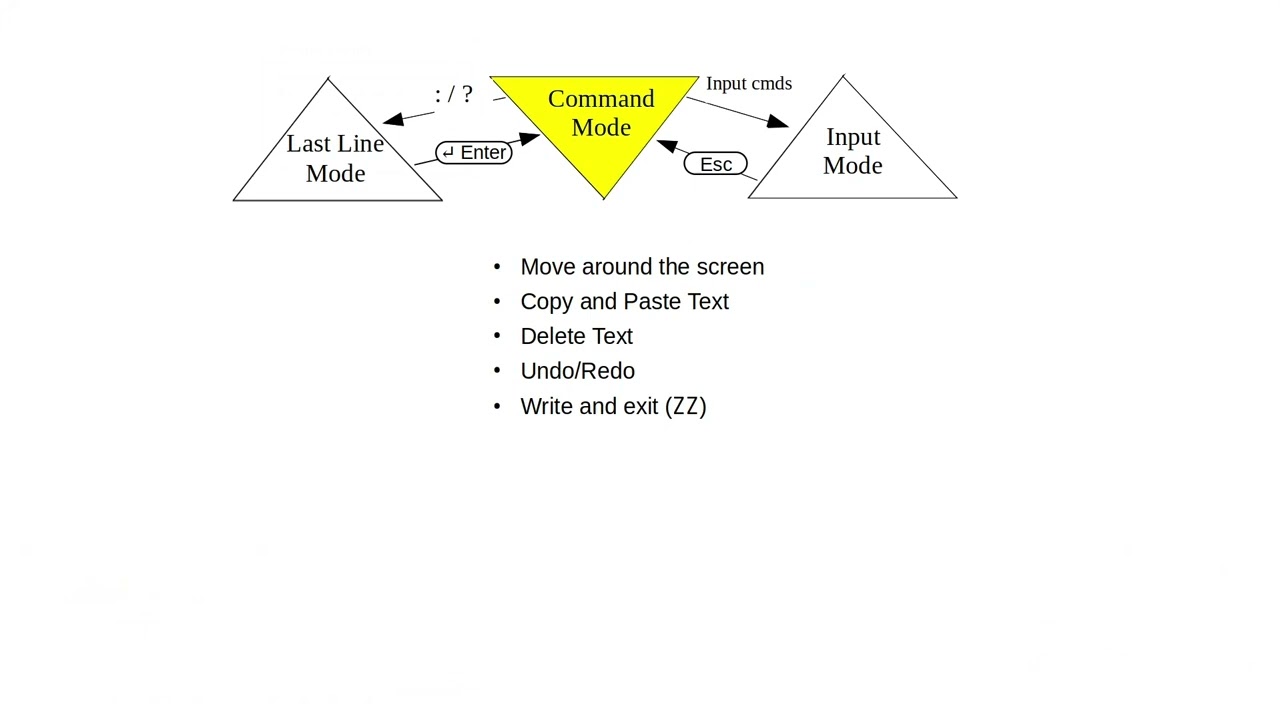
The primary focus of the explanation is the three distinct modes that define the user experience within Vim: command mode, input mode, and last line mode. Upon launching the application, a user automatically enters command mode, which serves as the default state for navigation and manipulation tasks. In this mode, users can move through text by characters, words, or lines, copy, paste, delete content, and perform undo or redo operations. Crucially, command mode does not allow for direct text entry; to add or modify content, the user must switch to input mode by pressing specific keys like 'i' or 'a'. Once in input mode, indicated by a status message at the bottom of the screen, the editor allows for typing, after which pressing the escape key returns the user to command mode.
The third and final mode discussed is last line mode, which is activated by pressing the forward slash, question mark, or colon keys, causing the cursor to drop to the bottom of the window. This mode enables powerful search and configuration capabilities depending on the key used to enter it. The forward slash initiates a forward search for specific text, while the question mark performs a backward search. Pressing the colon opens up a command-line interface where users can execute complex tasks such as moving blocks of lines, substituting text, saving files to disk, quitting the editor, or enabling line numbers. After executing any command in this mode by pressing enter, Vim automatically returns the user to command mode, completing the cycle of interaction.
In conclusion, understanding these three modes is essential for leveraging Vim's efficiency and avoiding confusion during editing sessions. The video emphasizes that knowing exactly which mode you are in and what actions are permitted in each state will significantly ease the learning curve and improve workflow. By mastering the transitions between command mode for navigation, input mode for text creation, and last line mode for advanced commands and searches, users can fully control their editing environment. This foundational knowledge sets the stage for more advanced usage, ensuring that learners can focus on content creation rather than struggling with the editor's interface mechanics.
Read the full video transcript
Honestly, I'm conflicted about how to
make videos about Vim, the text editor
we're learning about in this course.
I could make videos of me using the
commands and describing them.
But no, that would be way too boring.
Maybe record a live session where I edit
a real-life document and describe what
I'm doing.
Mhm, yeah, possibly. I hear that people
like watching streams of people playing
games, so why not with learning Linux?
Watching a stream doesn't appeal to me,
but I might give it a try.
Honestly, the best way to learn Vim is
to do the commands yourself following
the tutorial in the book.
What I'm going to do instead is give an
overview of how Vim is structured and
how you navigate around when using Vim.
Here's a diagram from a Vim quick
reference.
There's a link to the full document in
the description of this video.
I'm sorry, I don't know where I got the
document from, so I can't give the
author credit for it.
There are three states or modes that you
can be in when using Vim.
Command mode, input mode, and last line
mode.
When you enter Vim, you are in command
mode.
This is where you can do things like
moving around the screen in units of
characters, words, or whole lines.
You can copy and paste existing text.
You can delete existing text.
Undo and redo your changes.
And most important, write all your
changes and then exit Vim, and you do
that by typing capital Z twice.
Command mode doesn't let you enter text.
If you want to do that, you use one of
the input commands.
And here are a few of them at the right.
When you enter one of those commands,
you go to input mode.
And there you can add, insert, or change
text in the file.
A status line at the bottom of the Vim
window will tell you that you're
inserting text.
When you're finished with your
additions, changes, or replacements, you
press the escape key,
and that returns you to command mode.
Finally, there's last line mode.
If you press any of the keys {slash}
{question mark} or {colon},
the input cursor will drop to the bottom
of the window.
That's why it's called last line mode to
let you do other tasks.
If you got to last line mode by pressing
{slash}, that will let you search
forwards through the file to find text.
If you got to last line mode by pressing
{question mark},
Vim will let you do a backward search
through the file for the text that you
want.
If you got to last line mode by pressing
{colon}, you can do many other tasks.
You can move and insert text.
This example command {colon} 2,4m9
means
move lines 2 through 4 to line 9.
You can substitute old text with new
text.
You can save your files by writing them
back to disk with {colon} w.
You can exit Vim with {colon} q, which
means quit.
You can control your edit session.
For example, if I were to type colon set
NU, that would set line numbers and I
would see line numbers with my file.
And there are other features too
numerous to mention.
After you've specified your task,
when you press enter,
Vim will do the task
and return you to command mode.
And those are the three modes of using
Vim.
Learning and using Vim will be easier
when you know which mode you're in and
what each mode lets you do.